en use webui
The AstrBot admin panel features plugin management, log viewing, visual configuration, statistics viewing, and more.
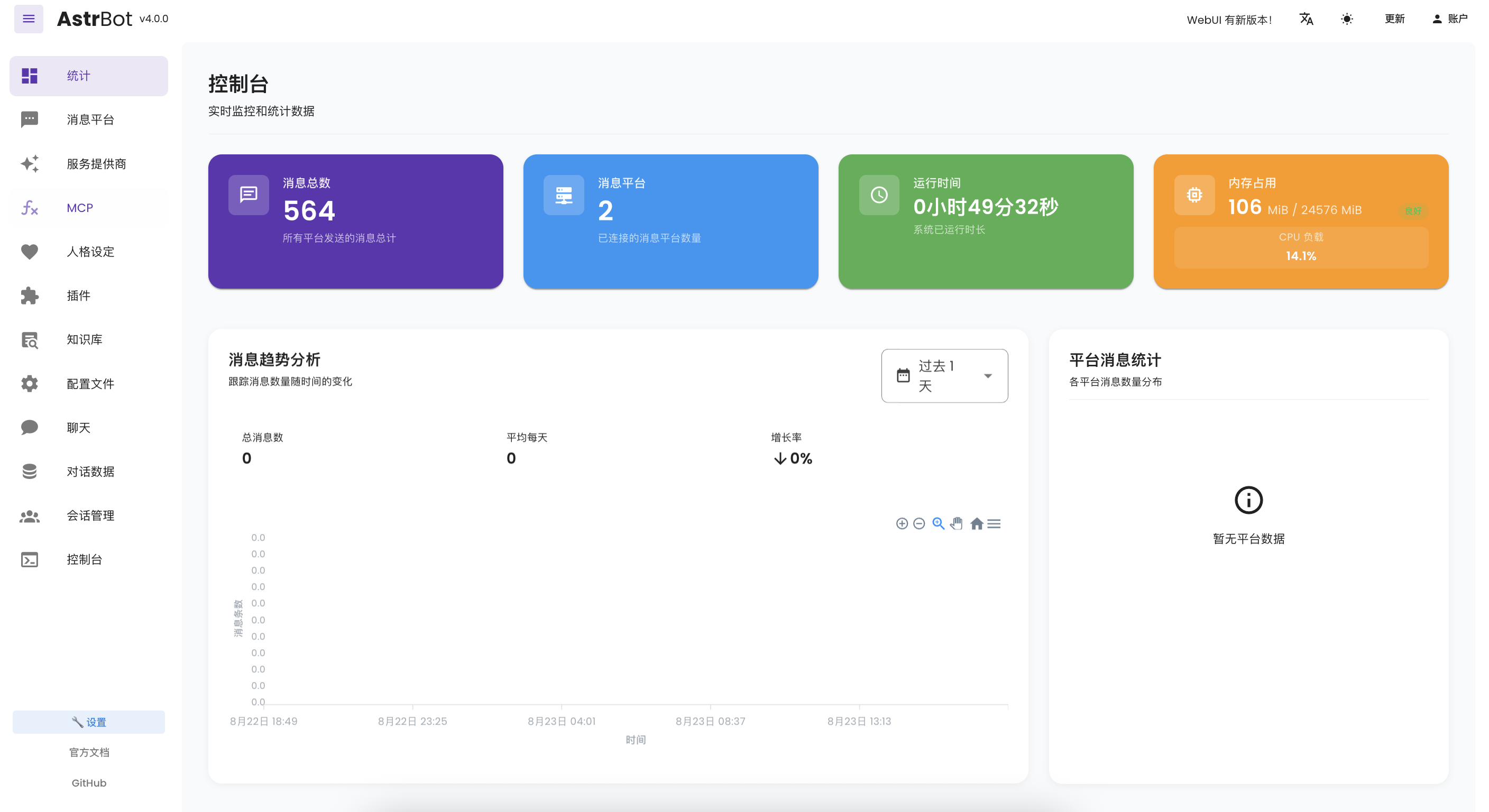
After starting AstrBot, you can access the admin panel by visiting http://localhost:6185 in your browser.
Tip
- If you're deploying AstrBot on a cloud server, replace
localhostwith your server's IP address.
The default username and password are both astrbot.
In the admin panel, you can configure AstrBot's plugins through visual configuration. Click Configuration in the left sidebar to enter the configuration page.
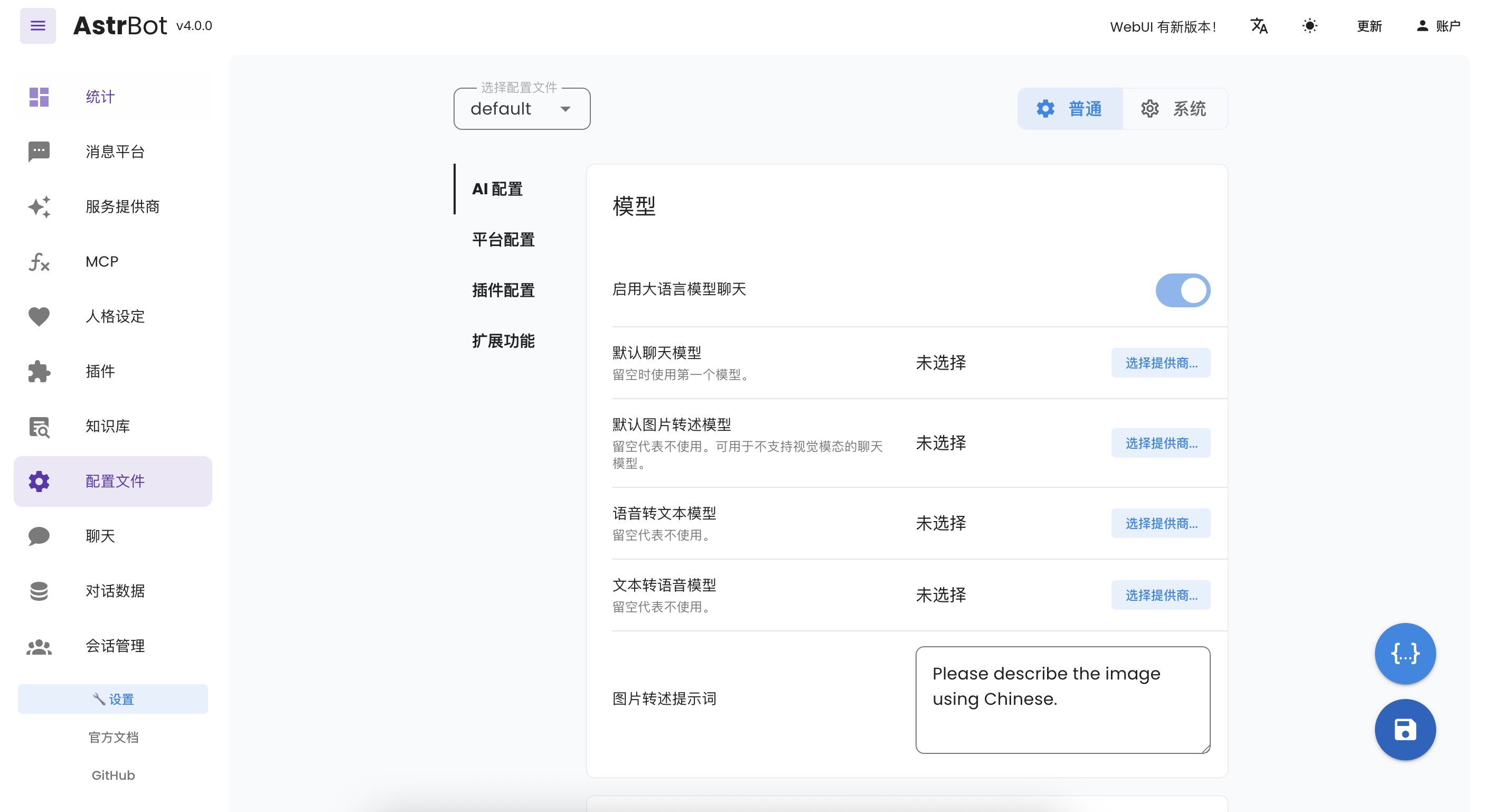
After modifying the configuration, you need to click the Save button in the bottom right corner to successfully save the configuration.
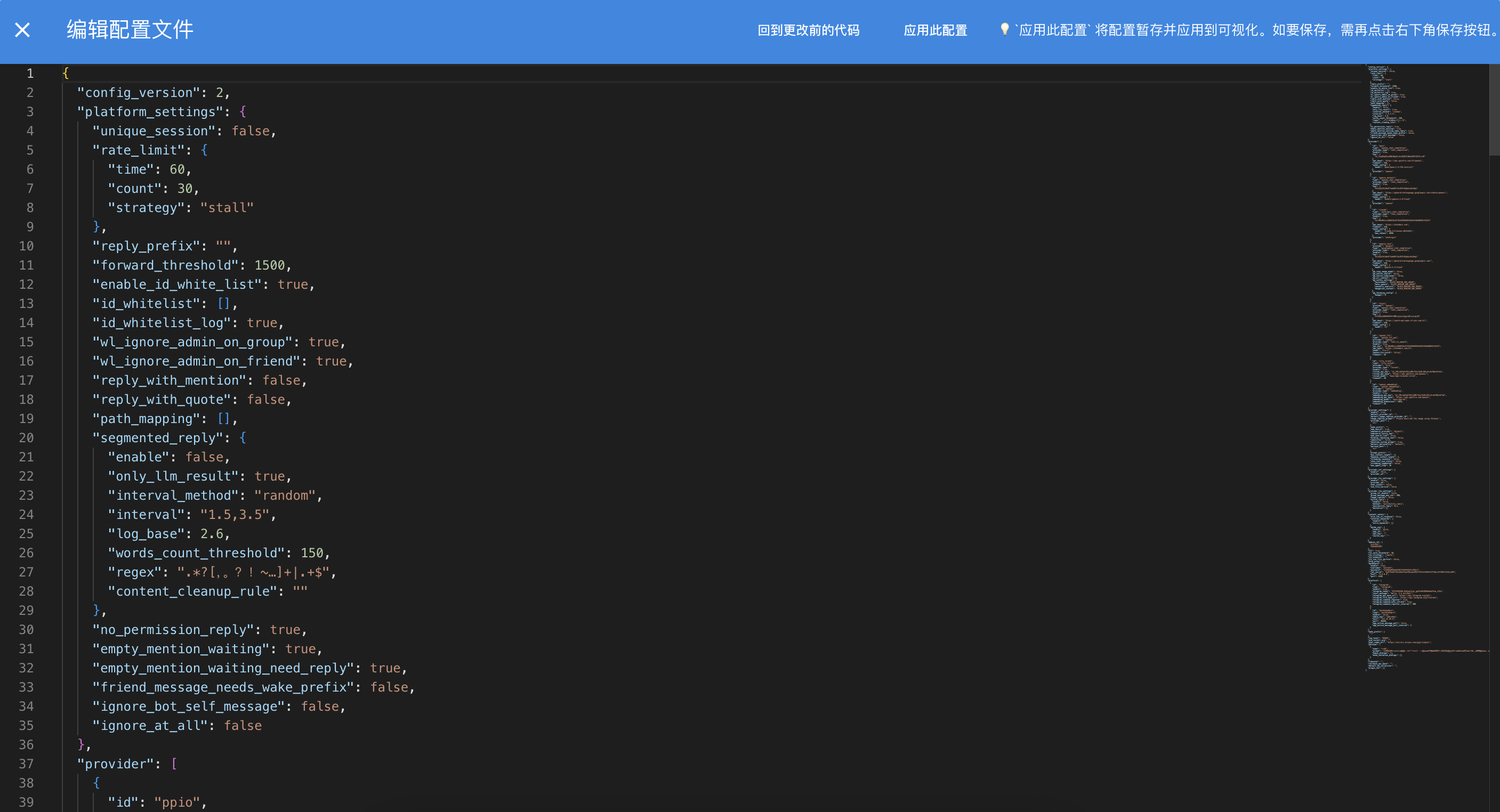
Use the first circular button in the bottom right corner to switch to Code Edit Configuration. In Code Edit Configuration, you can directly edit the configuration file.
After editing, first click Apply This Configuration, which will apply the configuration to the visual configuration, then click the Save button in the bottom right corner to save the configuration. If you don't click Apply This Configuration, your modifications won't take effect.
In the admin panel, you can view installed plugins and install new plugins through the Plugins section in the left sidebar.
Click the Plugin Market tab to browse plugins officially listed by AstrBot.
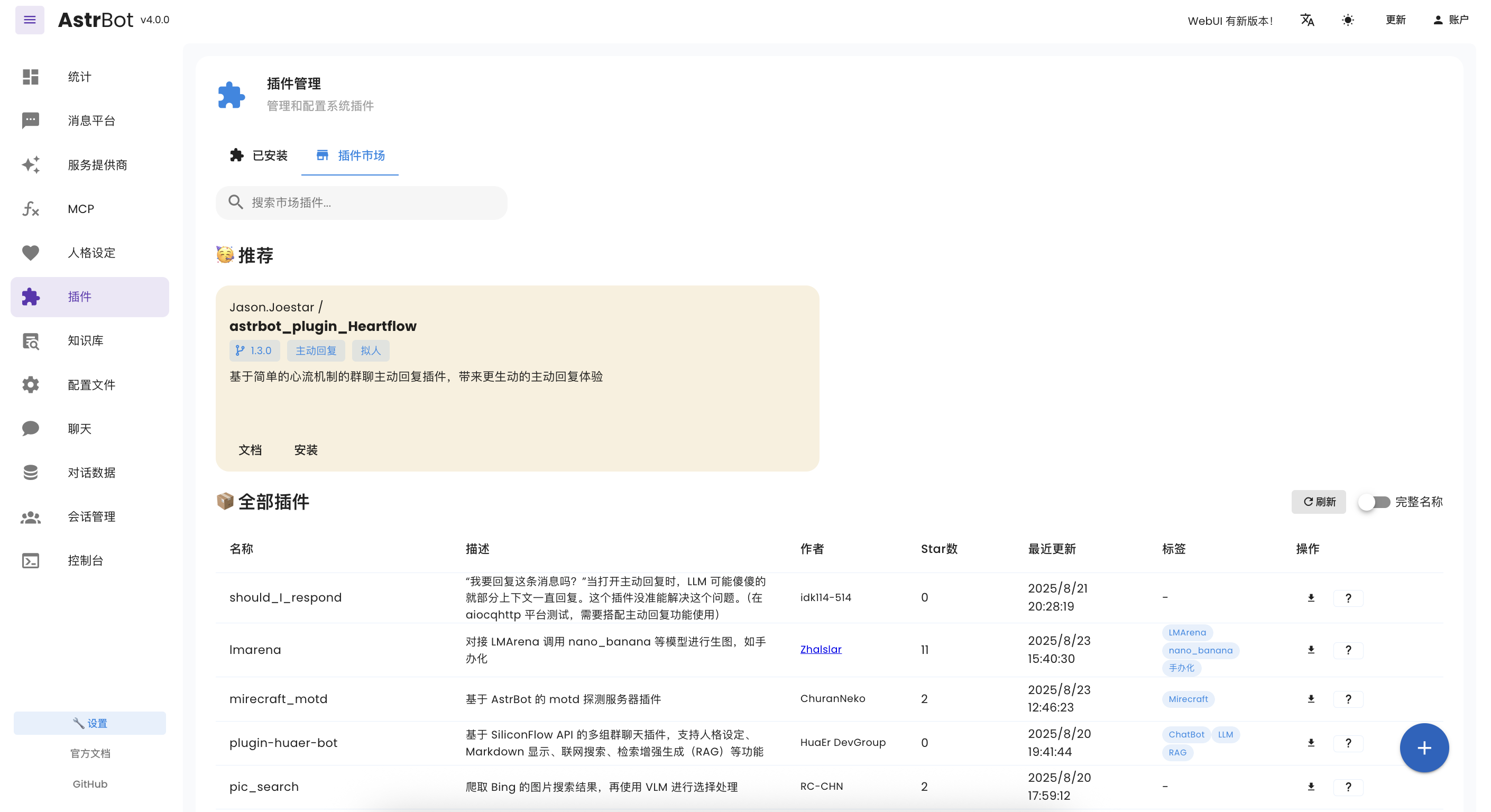
You can also click the + button in the bottom right corner to manually install plugins via URL or file upload.
Due to the plugin update mechanism, the AstrBot Team cannot fully guarantee the security of plugins in the plugin market. Please carefully verify them. The AstrBot Team is not responsible for any losses caused by plugins.
If a plugin fails to load, the admin panel will display the error message and provide a "Try one-click reload fix" button. This allows you to quickly reload the plugin after fixing the environment (e.g., installing missing dependencies) or modifying the code, without having to restart the entire application.
Use the Command Management menu on the left to centrally manage all registered commands; system plugins are hidden by default.
Filter by plugin, type (command / command group / subcommand), permission, and status, and combine with the search box for quick lookup. Command group rows can expand to show subcommands, badges display the subcommand count, and subcommand rows are indented to indicate hierarchy.
You can enable/disable and rename each command.
In the Trace page of the admin panel, you can view the real-time execution trace of AstrBot. This is useful for debugging model call paths, tool invocation processes, etc.
You can enable or disable trace recording using the switch at the top of the page.
Note
Currently only recording partial model call paths from AstrBot main Agent. More coverage will be added.
When AstrBot starts, it automatically checks if the admin panel needs updating. If it does, the first log entry (in yellow) will prompt you.
Use the /dashboard_update command to manually update the admin panel (admin command).
Admin panel files are located in the data/dist directory. If you need to manually replace them, download dist.zip from https://github.com/AstrBotDevs/AstrBot/releases/ and extract it to the data directory.
Modify the port in the dashboard configuration in the data/cmd_config.json file.
Modify the password in the dashboard configuration in the data/cmd_config.json file and delete the entire password key-value pair.