



Language syntax, auto-completions, formatter and build system for Nullsoft Scriptable Install System (NSIS), as well as language syntax for NSIS Language Files.
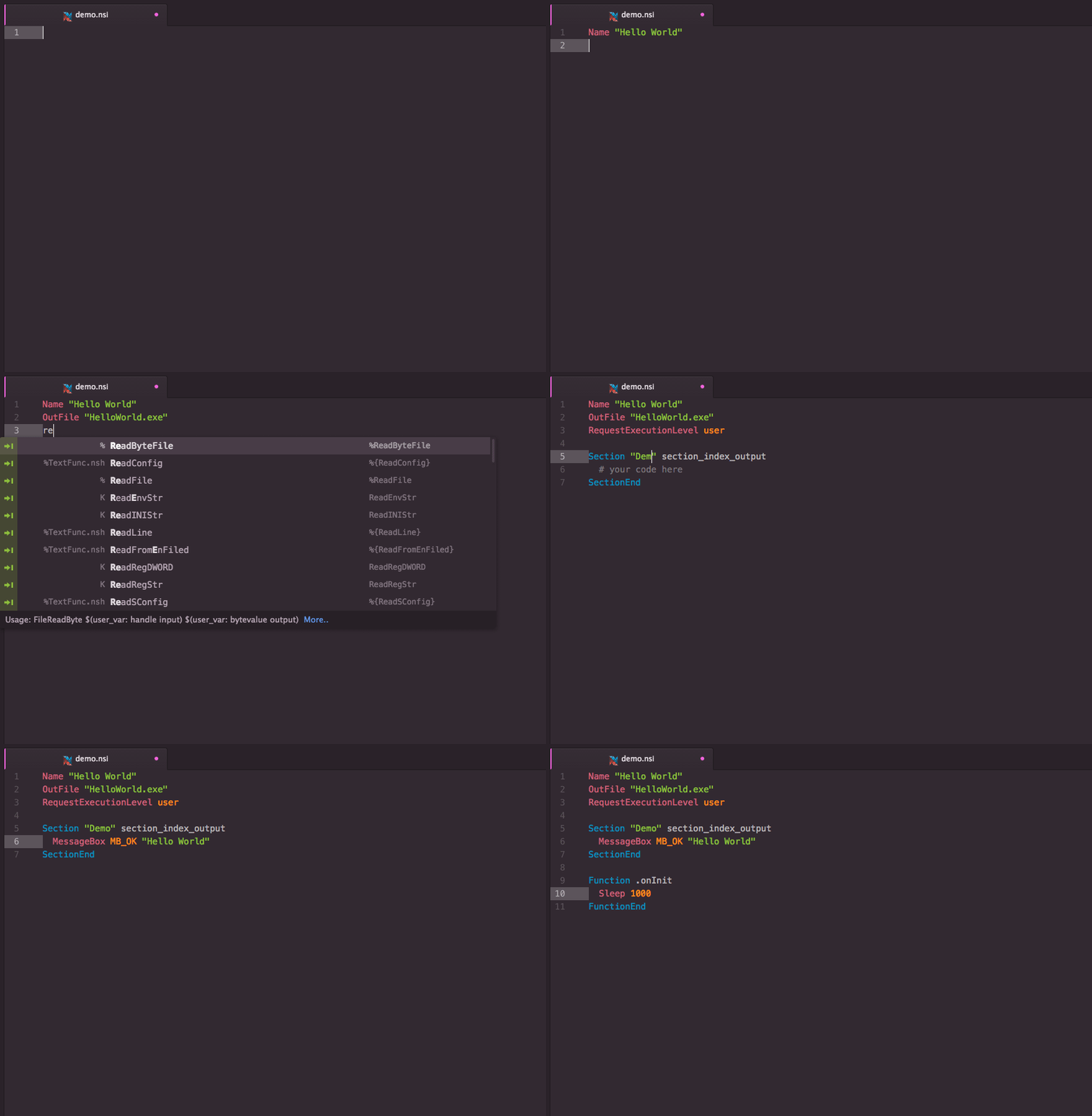
Screenshot of NSIS with Fira Mono font & the Hopscotch theme
- syntax grammar for NSIS and NSIS Language Files (.nlf)
- auto-complete core NSIS commands, variables and predefines
- auto-complete core Plugins:
- AdvSplash
- Banner
- BgImage
- Dialer
- InstallOptions
- LangDLL
- Math
- nsDialogs
- nsExec
- NSISdl
- Splash
- StartMenu
- System
- UserInfo
- VPatch
- auto-complete core libraries (“Useful Headers”):
- FileFunc
- LogicLib
- Memento
- Modern UI
- MultiUser
- Sections
- StrFunc
- WinMessages
- WinVer
- WordFunc
- x64
- Drunken NSIS
- Formatting
- Build Tools
- Linting
- Environment Variables
You can further extend this package with snippets for third-party plug-ins.
Note
The following guide assumes that you're by now using Pulsar, a
community-driven fork of the Atom editor. Should you still be using Atom, use
apm command instead of ppm.
Install language-nsis from the editor's
Package Manager
or the command-line equivalent:
$ ppm install language-nsisChange to your Atom packages directory:
Windows
# Powershell
$ cd $Env:USERPROFILE\.pulsar\packages
:: Command Prompt
$ cd %USERPROFILE%\.pulsar\packagesLinux & macOS
$ cd ~/.pulsar/packages/Clone repository as language-nsis:
$ git clone https://github.com/idleberg/atom-language-nsis language-nsisInside the cloned directory, install its dependencies:
$ ppm ciBuild the source:
$ ppm run buildThis package automatically installs third-party packages it depends on. You can prevent this by disabling the Manage Dependencies option in the package settings.
With most commands, you can specify available options before completion. For
instance, rather than completing RequestExecutionLevel and then specifying an
option, you can directly choose RequestExecutionLevel user from the completion
menu.
To complete
compile time commands,
variables or
predefines,
make sure to omit special characters like !, $ and brackets:
includecompletes to!includeINSTDIRcompletes to$INSTDIRNSIS_VERSIONcompletes to${NSIS_VERSION}
However, you have to type __LINE__ to complete to ${__LINE__}.
There are several special cases for your convenience:
MB_OKcompletes toMessageBox MB_OK "messagebox_text"onInitcompletes to aFunction .onInitblockLogicLibcompletes to!include "LogicLib.nsh"
Fuzzy syntax completions are available through the “Drunken NSIS” snippets, which iron out some of the inconsistencies of the NSIS language, for instance word order.
Example:
FileReadequalsReadFileReadINIStrequalsINIStrReadSectionSetTextequalsSetSectionTextLogSetequalsSetLogFindFirstequalsFirstFind${FindLine}equals${LineFind}
Scripts can be formatted using the experimental @nsis/dent package. To do so, run Format Document or adjust your settings for auto-formatting.
There are many ways to compile NSIS scripts in Atom. But before you read on,
make sure makensis is in your
PATH environment variable.
This package contains a build system to compile your NSIS scripts. To trigger a build, select “NSIS: Save & Compile” from the command-palette or use the keyboard shortcut.
If you prefer working with custom compiler arguments, you can specify them in
the
package settings.
Optionally, you can also specify the path to makensis.
This package will install an
Atom linter provider for
makensis. By default, NSIS documents get linted when opened or saved. Make
sure to refer to the
linter-makensis
documentation to learn about available lint modes and other settings.
There are several other, previously unmentioned commands available from the command-palette:
| Command | Description |
|---|---|
NSIS: Command Reference |
Look up NSIS command online |
NSIS: Open Package Settings |
Opens settings page |
NSIS: Show Version Info |
Shows current version of NSIS |
NSIS: Show Compiler Flags |
Shows output of makensis /HDRINFO |
NSIS: Convert Language File |
Converts NLF to JSON and vice versa |
This extension supports a variety of ways to provide environment variables such
as NSISDIR or NSISCONFDIR. The following precedence applies:
.envfiles- system-wide environment variables
Note: Some operating systems require the editor to be launched from terminal in order to access system-wide environment variables.
Additionally, you can pass special environment variables prefixed with
NSIS_APP_ as definitions to your installer script.
Example
# .env
NSIS_APP_ENVIRONMENT=development
# installer.nsi
!if ${NSIS_APP_ENVIRONMENT} == "development"
DetailPrint "Valuable Debug Information"
!endif- node-makensis - Node wrapper for
makensis - vscode-nsis - NSIS package for Visual Studio Code
This work is under The MIT License.
