This guide provides detailed, step-by-step instructions to compile and run LichtFeld-Studio on a Windows 11 machine. It is tailored to a specific environment and includes solutions to common compilation errors encountered during the process.
Before you begin, ensure your system meets the following requirements:
- Operating System: Windows 11.
- Visual Studio: Visual Studio 2022 (or 2019) with the "Desktop development with C++" workload installed.
- Git: Required for cloning the repository. You can download it from git-scm.com.
- CMake: Version 3.20 or higher. You can check your version by running cmake --version in a command prompt.
- vcpkg: A C++ package manager from Microsoft. It should be installed, and the VCPKG_ROOT system environment variable must be set to its location (e.g., D:\vcpkg).
- CUDA Toolkit: Recommended Version: 12.8. The project specifies a LibTorch version built for CUDA 12.8 (cu128). Using a newer version like 13.0 will likely cause compilation errors. This guide assumes you are using CUDA 12.8. If you have multiple CUDA versions installed, ensure your system's CUDA_PATH environment variable points to the 12.8 installation.
IMPORTANT NOTE: All build commands must be executed from the x64 Native Tools Command Prompt for Visual Studio. Do not use a standard Command Prompt or PowerShell, as it will not be able to find the necessary C++ compiler (cl.exe).
Open the x64 Native Tools Command Prompt and run the following commands to clone the repository and navigate into the project directory.
git clone https://github.com/MrNeRF/LichtFeld-Studio
cd LichtFeld-StudioCreate the required folders for the external libraries.
mkdir external
mkdir external\debug
mkdir external\releaseThe project requires both debug and release builds of LibTorch 2.7.0 for CUDA 12.8. Download and extract the Debug version:
curl -L -o libtorch-debug.zip https://download.pytorch.org/libtorch/cu128/libtorch-win-shared-with-deps-debug-2.7.0%2Bcu128.zip
tar -xf libtorch-debug.zip -C external\debug
del libtorch-debug.zip
Download and extract the Release version:
curl -L -o libtorch-release.zip https://download.pytorch.org/libtorch/cu128/libtorch-win-shared-with-deps-2.7.0%2Bcu128.zip
tar -xf libtorch-release.zip -C external\release
del libtorch-release.zipNow, run CMake to generate the build files. Note: If this step fails with a vcpkg error, see the troubleshooting section below.
cmake -B build -DCMAKE_BUILD_TYPE=Release -G NinjaFinally, compile the project using the build files generated by CMake. This process will take several minutes.
cmake --build buildIf the command completes without errors, the LichtFeld-Studio.exe executable will be located in the D:\LichtFeld-Studio\build directory.
- Error: Cannot find compiler 'cl.exe' in PATH
Cause: You are not using the correct command prompt.
Solution: Close your current terminal and open the "x64 Native Tools Command Prompt for VS 2022" (or your VS version) from the Start Menu. Navigate back to your project directory and run the cmake command again.
- Error: vcpkg install failed... failed togit showversions/baseline.json
Cause: Your local vcpkg repository is out of date and cannot find the specific library versions required by the project.
Solution: Update your vcpkg installation by running these commands from your VCPKG_ROOT directory:
cd /d D:\vcpkg  # Replace with your VCPKG_ROOT path
git pull
.\bootstrap-vcpkg.bat
After updating, delete the build folder in your LichtFeld-Studio directory and re-run the cmake configuration command.
- Error: namespace "cub" has no member "Max"
Cause: This is a known incompatibility between newer CUDA versions (13.0+) and the version of the CUB library expected by this project's dependencies (LibTorch cu128).
Solution: The most reliable solution is to use CUDA Toolkit 12.8. Change your system's environment variables (CUDA_PATH) to point to your CUDA 12.8 installation and restart your command prompt before running the build again.
You will need to have COLMAP installed to do this. If you don't have it, you can download it from the official COLMAP release page.
This step is for custom inputs. If you have a video, please extract it into image frames. This can be done with FFMPEG. Below is a template for the ffmpeg command.
ffmpeg -i path/to/your/360_video.mp4 -vf fps=2 -qscale:v 1 output_folder/image_%04d.jpg
Now, with a collection of images of a scene, you would need to put the set of input images into the input_data/<your_image_collection>/input folder. Eg. fern/input
Taking 2 collections (fern and toy_truck) of input images as an example, below is the File Structure requirements before running convert.py. You would need to create these folders.
📂gaussian-splatting-Windows.git/ # this is root
├── 📂input_data/
│	├── 📂fern/
│	│	├── 📂input/
│	│	│	├── 🖼️image1.jpg
│	│	│	├── 🖼️image2.jpg
│	│	│	│...
│	├── 📂toy_truck/
│	│	├── 📂input/
│	│	│	├── 🖼️image1.jpg
│	│	│	├── 🖼️image2.jpg
│	│	│	│...
│ │...
│...
Now, using fern as an example,
python convert.py -s input_data/fern --colmap_executable COLMAP-3.8-windows-cuda\COLMAP.bat
Below is the template:
python convert.py -s <your_input_dir> --colmap_executable COLMAP-3.8-windows-cuda\COLMAP.bat
This step converts the extracted equirectangular 360° frames into a set of standard 2D perspective images. This format is required by most Structure from Motion (SfM) software, including COLMAP, to calculate camera poses accurately. The recommended tool for this task is a command-line utility from an older version of AliceVision Meshroom.
Tool: aliceVision_utils_split360Images.exe
Important Note: This utility is only available in the 2021.1.0 release of Meshroom. Newer versions do not include it as a standalone file.
Download Meshroom 2021.1.0: Go to the v2021.1.0 release page on GitHub and download the version for your OS.
Extract the files: Unzip the archive to a location on your computer. You do not need to install it; you only need to run the utility from the extracted folder.
Run the command: Open a terminal or command prompt, navigate to the folder where you extracted Meshroom, and run the following command:
# On Windows
aliceVision_utils_split360Images.exe -i path/to/360_frames -o path/to/2d_output --equirectangularNbSplits 8 --equirectangularSplitResolution 1200
Command Breakdown:
-i path/to/360_frames: The input folder containing the 360° images you extracted with FFmpeg.
-o path/to/2d_output: The output folder where the new 2D images will be saved.
--equirectangularNbSplits 8: This splits each 360° image into 8 perspective views (like photos taken facing forward, right, back, left, etc.). This is a good default for full coverage.
--equirectangularSplitResolution 1200: This sets the output resolution of the square 2D images to 1200x1200 pixels. Adjust as needed for your project's quality requirements.








Quick Start • Installation • Usage • Results • Community
LichtFeld Studio is a free, open-source implementation of 3D Gaussian Splatting that pushes the boundaries of real-time rendering performance.
Why Your Support Matters: This project requires significant time and resources to develop and maintain.
Unlike commercial alternatives that can cost thousands in licensing fees, LichtFeld Studio remains completely free and open. Your contribution helps ensure it stays that way while continuing to evolve with the latest research.
Whether you're using it for research, production, or learning, your support enables us to dedicate more time to making LichtFeld Studio faster, more powerful, and accessible to everyone in the 3D graphics community.


LichtFeld Studio is a high-performance implementation of 3D Gaussian Splatting that leverages modern C++23 and CUDA 12.8+ for optimal performance. Built with a modular architecture, it provides both training and real-time visualization capabilities for neural rendering research and applications.
- 2.4x faster rasterization (winner of first bounty by Florian Hahlbohm)
- MCMC optimization strategy for improved convergence
- Real-time interactive viewer with OpenGL rendering
- Modular architecture with separate core, training, and rendering components
- Multiple rendering modes including RGB, depth, and combined views
- Bilateral grid appearance modeling for handling per-image variations
Join our growing community for discussions, support, and updates:
- Discord Community - Get help, share results, and discuss development
- LichtFeld Studio FAQ - Frequently Asked Questions about LichtFeld Studio
- Website - Visit our website for more resources
- Awesome 3D Gaussian Splatting - Comprehensive paper list
- @janusch_patas - Follow for the latest updates
💰 $2,430 | Issue #443
📅 Deadline: October 12, 2025 at 11:59 PM PST
💰 $500 | Issue #421
📅 Deadline: None (open-ended)
# Clone and build (Linux)
git clone https://github.com/MrNeRF/LichtFeld-Studio
cd LichtFeld-Studio

# Download LibTorch
wget https://download.pytorch.org/libtorch/cu128/libtorch-cxx11-abi-shared-with-deps-2.7.0%2Bcu128.zip
unzip libtorch-cxx11-abi-shared-with-deps-2.7.0+cu128.zip -d external/

# Build
cmake -B build -DCMAKE_BUILD_TYPE=Release -G Ninja
cmake --build build -- -j$(nproc)

# Train on sample data
./build/LichtFeld-Studio -d data/garden -o output/garden --eval-
OS: Linux (Ubuntu 22.04+) or Windows
-
CMake: 3.30 or higher
-
Compiler: C++23 compatible (GCC 14+ or Clang 17+)
-
CUDA: 12.8 or higher (required)
-
LibTorch: 2.7.0 (setup instructions below)
-
vcpkg: For dependency management
- GPU: NVIDIA GPU with compute capability 7.5+
- VRAM: Minimum 8GB recommended
- Tested GPUs: RTX 4090, RTX A5000, RTX 3090Ti, A100, RTX 2060 SUPER
Linux Build
# Set up vcpkg (one-time setup)
git clone https://github.com/microsoft/vcpkg.git
cd vcpkg && ./bootstrap-vcpkg.sh -disableMetrics && cd ..

## If you want you can specify vcpkg locally without globally setting env variable (see -DCMAKE_TOOLCHAIN_FILE version)
export VCPKG_ROOT=/path/to/vcpkg  # Add to ~/.bashrc

# Clone repository
git clone https://github.com/MrNeRF/LichtFeld-Studio
cd LichtFeld-Studio

# Download LibTorch 2.7.0 with CUDA 12.8
wget https://download.pytorch.org/libtorch/cu128/libtorch-cxx11-abi-shared-with-deps-2.7.0%2Bcu128.zip
unzip libtorch-cxx11-abi-shared-with-deps-2.7.0+cu128.zip -d external/
rm libtorch-cxx11-abi-shared-with-deps-2.7.0+cu128.zip

# Build
cmake -B build -DCMAKE_BUILD_TYPE=Release -G Ninja

## Or if you want you can specify your own vcpkg
# cmake -B build -DCMAKE_BUILD_TYPE=Release -DCMAKE_TOOLCHAIN_FILE="<path-to-vcpkg>/scripts/buildsystems/vcpkg.cmake" -G Ninja

cmake --build build -- -j$(nproc)
Windows Build
note: Detailed instructions here
Run in x64 native tools command prompt for VS:
# Set up vcpkg (one-time setup)
git clone https://github.com/microsoft/vcpkg.git
cd vcpkg && .\bootstrap-vcpkg.bat -disableMetrics && cd ..

## If you want you can specify vcpkg locally without globally setting env variable (see -DCMAKE_TOOLCHAIN_FILE version)
set VCPKG_ROOT=%CD%\vcpkg

# Clone repository
git clone https://github.com/MrNeRF/LichtFeld-Studio
cd LichtFeld-Studio

# Create directories
if not exist external mkdir external
if not exist external\debug mkdir external\debug
if not exist external\release mkdir external\release

# Download LibTorch (Debug)
curl -L -o libtorch-debug.zip https://download.pytorch.org/libtorch/cu128/libtorch-win-shared-with-deps-debug-2.7.0%2Bcu128.zip
tar -xf libtorch-debug.zip -C external\debug
del libtorch-debug.zip

# Download LibTorch (Release)
curl -L -o libtorch-release.zip https://download.pytorch.org/libtorch/cu128/libtorch-win-shared-with-deps-2.7.0%2Bcu128.zip
tar -xf libtorch-release.zip -C external\release
del libtorch-release.zip

# Build

## Or if you want you can specify your own vcpkg
# cmake -B build -DCMAKE_BUILD_TYPE=Release -G ninja -DCMAKE_TOOLCHAIN_FILE="<path-to-vcpkg>/scripts/buildsystems/vcpkg.cmake"

# Ninja should be included with Visual Studio installation,
# if not you can either install it,
# or ignore this flag and use native generator - Building time might be extended
cmake -B build -DCMAKE_BUILD_TYPE=Release -G Ninja

cmake --build build -j
Docker Build
# Build and start container
./docker/run_docker.sh -bu 12.8.0

# Build without cache
./docker/run_docker.sh -n

# Stop containers
./docker/run_docker.sh -cUbuntu 24.04+ (GCC 14)
# Install GCC 14
sudo apt update
sudo apt install gcc-14 g++-14 gfortran-14

# Set as default
sudo update-alternatives --install /usr/bin/gcc gcc /usr/bin/gcc-14 60
sudo update-alternatives --install /usr/bin/g++ g++ /usr/bin/g++-14 60
sudo update-alternatives --config gcc
sudo update-alternatives --config g++
Ubuntu 22.04 (Build GCC 14 from source)
# Install dependencies
sudo apt install build-essential libmpfr-dev libgmp3-dev libmpc-dev -y

# Download and build GCC
wget http://ftp.gnu.org/gnu/gcc/gcc-14.1.0/gcc-14.1.0.tar.gz
tar -xf gcc-14.1.0.tar.gz
cd gcc-14.1.0

# Configure and build (1-2 hours)
./configure --prefix=/usr/local/gcc-14.1.0 --enable-languages=c,c++ --disable-multilib
make -j$(nproc)
sudo make install

# Set up alternatives
sudo update-alternatives --install /usr/bin/gcc gcc /usr/local/gcc-14.1.0/bin/gcc 14
sudo update-alternatives --install /usr/bin/g++ g++ /usr/local/gcc-14.1.0/bin/g++ 14The preferred way to use LichtFeld Studio is to import your data (undistorted images + pointcloud + camera locations) in COLMAP format.
Have a look at these 2 introduction videos on how to get your images ready for use in LichtFeld Studio:
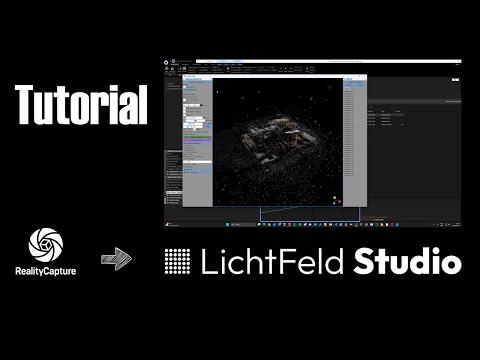
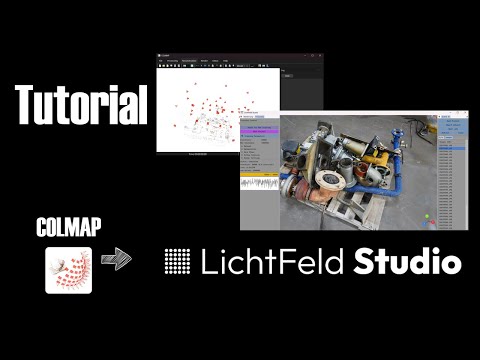
Download and extract the Tanks & Trains dataset:
wget https://repo-sam.inria.fr/fungraph/3d-gaussian-splatting/datasets/input/tandt_db.zip
unzip tandt_db.zip -d data/Basic training:
./build/LichtFeld-Studio -d data/garden -o output/gardenTraining with evaluation and visualization:
./build/LichtFeld-Studio \
    -d data/garden \
    -o output/garden \
    --eval \
    --save-eval-images \
    --render-mode RGB_D \
    -i 30000
MCMC strategy with limited Gaussians:
./build/LichtFeld-Studio \
    -d data/garden \
    -o output/garden \
    --strategy mcmc \
--max-cap 500000-d, --data-path [PATH]- Path to training data with COLMAP reconstruction
-o, --output-path [PATH]- Output directory (default:./output)-i, --iter [NUM]- Training iterations (default: 30000)-r, --resize_factor [NUM]- Image resolution factor (default: 1)--strategy [mcmc|default]- Optimization strategy (default:mcmc)--max-cap [NUM]- Maximum Gaussians for MCMC (default: 1000000)
--eval- Enable evaluation during training--save-eval-images- Save evaluation images--test-every [NUM]- Test/validation split ratio (default: 8)
--headless- Run without GUI (terminal-only mode)
--bilateral-grid- Enable appearance modeling--steps-scaler [NUM]- Scale training steps for multiple checkpoints- See
--helpfor complete list of options
The implementation uses weights/lpips_vgg.pt, exported from torchmetrics with:
- Network: VGG with ImageNet pretrained weights
- Input range: [-1, 1] (conversion handled internally)
- Normalization: Included in model
LichtFeld-Studio/
├── src/
│   ├── core/          # Foundation (data structures, utilities)
│   ├── geometry/      # Geometric operations
│   ├── loader/        # Dataset loading (COLMAP, PLY, Blender)
│   ├── training/      # Training pipeline and strategies
│   ├── rendering/     # CUDA/OpenGL rendering
│   └── visualizer/    # Interactive GUI
├── gsplat/            # Optimized rasterization backend
├── fastgs/            # Fast Gaussian splatting kernels
└── parameter/         # JSON configuration files
We welcome contributions! See our Contributing Guidelines.
- Check issues labeled good first issue
- Join our Discord for discussions
- Use the pre-commit hook:
cp tools/pre-commit .git/hooks/
- C++23 compatible compiler (GCC 14+ or Clang 17+)
- CUDA 12.8+ for GPU development
- Apply
clang-formatfor code style
This implementation builds upon:
- gsplat - Optimized CUDA rasterization backend
- 3D Gaussian Splatting - Original work by Kerbl et al.
@software{lichtfeld2025,
  author    = {LichtFeld Studio},
  title     = {A high-performance C++ and CUDA implementation of 3D Gaussian Splatting},
  year      = {2025},
  url       = {https://github.com/MrNeRF/LichtFeld-Studio}
}This project is licensed under GPLv3. See LICENSE for details.