- Type of Challenge:
Learner Workshop - Duration:
3 hours
-
Install Ruby, Rails
-
Setup your first project
-
Learn the basics of Ruby on Rails through building a simple weblog
- Learn your way around the file structure
- Learn to use the MVC layer of Ruby on Rails
- Learn to use the routing component
- Learn about RubyGems
- Learn about HTTP handling
- Ruby documentation
- Ruby on Rails documentation
- Bundler
- RubyGems
In this workshop, I would like to guide you through the first steps of learning Ruby on Rails by building a weblog together. You will run into some familiar concepts like the MVC model, HTTP requests, routing and templates, and will also work with a virtual database that will store all the information you are adding to your web server.
For Lamarr, all of this should remind you very much of Symfony. For Giertz, I will try to help you as much as I can where needed, but will always try to supply enough documentation for you to find your way as well.
It's always worth checking if your computer came with Ruby preinstalled, or maybe you at some point installed it and never touched it again. You can do so by typing the following, usual code in your terminal:
ruby -v
If this returns a message similar to:
ruby 2.6.3p62 (2019-04-16 revision 67580) [x86_64-linux]
... Then you're set! Otherwise, you can follow this link for the different installation methods depending on your operating system: https://www.ruby-lang.org/en/documentation/installation/
For us Linux/Ubuntu users, i'll include the very simple terminal command you will need:
$ sudo apt-get install ruby-full
Next up, we need to install Rails itself, as it will allow us to generate a plethora of things that have been prebuilt for us, which will help us set up our own weblog without much difficulty. For that, I will also include a link to an external source:
http://guides.railsgirls.com/install
Follow the steps for your specific system all the way up to having installed Rails. You do not need to install any text editors anymore, since you either decided to install RubyMine or chose to work with your own editor of choice.
If you did not install RubyMine, but still wish to, you can follow the link below this line. Just log in with your JetBrains credentials and download it for free:
Now that we have Ruby, Rails and a suitable text editor, we can start by setting our own directories and subsuequently navigate the directories from Ruby on Rails as well.
- First use the terminal to navigate to the directory you want to store your project in.
- Once there, use the following command to generate the main files for your project:
rails new yourProjectName
I suggest you use a name like rubyBlog, blogger, or something that will remind you what the project was all about in a few weeks ;)
Now, let's move on to setting up our repository online and connecting it to this directory. Go to your own github and make a new repository, but do not initialize it with a README.md.
Next, navigate into your new Rails project and initialize your git using the git init command. After that, you will need to add all the files you find there to your git staging area by using git add .. And like always, follow this by commiting it with a message using git commit -m "my message" .
Having done this, you would follow this with your usual git push, but first we need to set up our remote repository still. You do this using the usual SSH key along with the following command
$ git remote add origin yourSSHkey
# Sets the new remote
$ git remote -v
# Verifies the new remote URL
If all goes well, that last command will return the URL of the repository that has been linked to.
Now we can finish it up by setting up our upstream branch by adding something to the usual git push origin master command:
git push --set-upstream origin master
And we're ready to go!
Let's open up our project in our text editor, shall we?
Once open, you should see something similar to this:

Let's go over them one by one!
-
app- This is where almost all of our own code an effort will go. This will contain all the subfolders for your different models, controllers and views, all usually separated over their respective object directories. In addition, this also holds the /assets directory where you will store your images and your stylesheets, and also has the javascript directory for all your scripts and packages that you wish to install on top of it. -
bin- This is where your app’s executables are stored: bundle, rails, rake, and spring. We will not be going into this directory manually, only through the bundles that we want to use for other purposes. -
config- Control the environment settings for your application. Important for this project and any other is the 'routes.rb' file, which will determine the pathing and routing for our eventual website. More on that later. -
db- Will eventually have a migrations subfolder where your migrations, used to structure the database, will be stored. When using SQLite3, as is the Rails default, the database file will also be stored in this folder. -
lib- This folder is to store code you control that is reusable outside the project. I have yet to use this myself as I am just starting to grasp Rails as well -
log- Contains logs for your development and deployment, but to me personally this is all still Chinese and I do not know how to read them -
public- For those familiar with Symfony, this is where you would expect your views and your index, and although this used to be the case, it has all moved up to the app folder since Rails 3.1. -
test- Only applicable if your using the default Test::Unit testing library, but we will not explore that in this workshop. -
tmp- Stores our temporary cached files -
vendor- Infrequently used, this folder is to store code you do not control. With Bundler and Rubygems, we generally don’t need anything in here during development.
Outside of the directories, we see some other files with various extensions. One that we have already talked about briefly is included here too: the Gemfile
Open it up and you can see the general structure of the file and some of the preloaded gems like this:
source 'https://rubygems.org'
git_source(:github) { |repo| "https://github.com/#{repo}.git" }

ruby '2.6.3'

# Bundle edge Rails instead: gem 'rails', github: 'rails/rails'
gem 'rails', '~> 6.0.3', '>= 6.0.3.3'
# Use sqlite3 as the database for Active Record
gem 'sqlite3', '~> 1.4'
# Use Puma as the app server
gem 'puma', '~> 4.1'
# Use SCSS for stylesheets
gem 'sass-rails', '>= 6'
# Transpile app-like JavaScript. Read more: https://github.com/rails/webpacker
gem 'webpacker', '~> 4.0'
# Turbolinks makes navigating your web application faster. Read more: https://github.com/turbolinks/turbolinks
gem 'turbolinks', '~> 5'
# Build JSON APIs with ease. Read more: https://github.com/rails/jbuilder
gem 'jbuilder', '~> 2.7'
You can see they are included with the prefix 'gem', written between quotations themselves and optionally followed by their version number. This is one way you will find gems on the internet; if you include them like this and then run your 'Bundle' tool in your terminal, you will install that gem! Easy, right? We'll install a few gems in just a moment.
This is a very simple step: much like Php, Rails and Ruby also have a virtual server hosting tool. You can start it up with the following terminal command, while in the directory of your project:
rails s
# or
rails server
This will, by default, open up a live server on http://localhost:3000
Go check it out, and you should see the following screen:
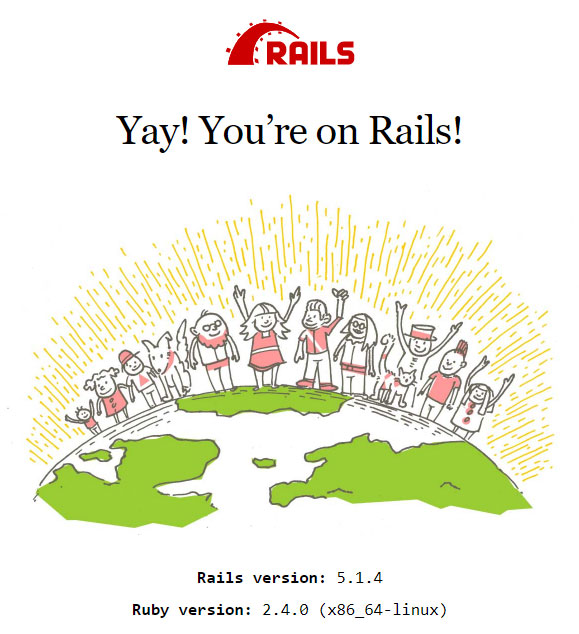

In case you have an error, this might be because you do not have SQLite3 installed (when on Windows). If this is the case, follow the following link and make sure you check the box to configure your environment variables. Once this is done, restart your system, start your server up again and try loading the page again.
That's all we'll need for now, let's get cracking with the actual code now!
Now, let us start by showcasing the power of a framework like Rails. In Rails, there is a concept called 'scaffolding'. This would generally translate to 'stellingen' or 'een stelling', and is a metaphor for something, but for what?
Let's try generating the scaffolding for our blog articles. Open up your terminal and type:
rails generate scaffold Article title:string body:text
Execute that and... Tada! Wait, what just happened?
Rails went and did some of the boring and tedious coding work for you by creating a lot of different files and directories for your new Article model. In your terminal, you see this:
 invoke  resource_route
       route    resources :smurves
      invoke  scaffold_controller
      create    app/controllers/smurves_controller.rb
      invoke    erb
      create      app/views/smurves
      create      app/views/smurves/index.html.erb
      create      app/views/smurves/edit.html.erb
      create      app/views/smurves/show.html.erb
      create      app/views/smurves/new.html.erb
      create      app/views/smurves/_form.html.erb
Going over these lines, you can see snippets like 'create app/models/smurf.rb', 'create app/controllers/smurves_controller.rb' , 'create app/views/smurves...'. Those are the three main parts of our MVC design pattern, just right there for you already!
Let's open up the article_controller in our directory and see what it looks like. You can find it under ./app/controllers/articles_controller.rb.
At first glance, you can see that there is a lot going on already. But if you look closely, you can see that Rails went along and made all the necessary actions or methods for a typical RESTful setup: index, show, new, edit, create, update and destroy.
Take a look at the index action.
 # GET /articles
 # GET /articles.json
def index
  @articles = Article.all
end
The first two lines are comments which indicate at what route you can access this page. If you add /articles to your http://localhost:3000, you should arrive at this page. But before we try that, let's go over the actual action.
We open up de action or function with the def keyword and call it index, which is important since Rails will be able to identify and connect the index route /articles to this. This falls in the 'Convention-over-Configuration' principle, which comes down to only deviating from convention if necessary. We could call this homepage, but then we would also have to go and configure our routing ourselves. That sounds like too much work, right?
Inside the method, we declare the instance variable @articles which will be equal to all instances known of an Article object. For this, Rails will go and call upon your database and look for all datasets that correspond to our model. Maybe you should try and open up this path and see what happens? navigate to http://localhost:3000/articles.

If you read closely, it says that our database still has no clue of this model even existing, or what it is built from. It says we still need to run a migration, but what is that all about? You can find that in the db directory, with a timestamped name and something like 'create_articles' in it. Open it up and you'll see:
class CreateArticles < ActiveRecord::Migration[6.0]
  def change
    create_table :articles do |t|
      t.string :title
      t.text :body

      t.timestamps
    end
  end
end
If you go back to our scaffolding statement, you can see that we added title:string body:text. These are the properties of our model that we need at the minimum: a title in the string format, and a body of our article which will take the text type. These are added here in the change action where you see the articles table is created with those rows in it. and at the bottom, you see that timestamps are added by default, which will be the created_at and updated_at properties.
Now that makes some sense out of the code, let's run the migration so that our database is set up. You can do this by running the console command rails db:migrate which will run all migrations present in your code.
Go back to your browser and try opening http://localhost:3000/articles again. Now it should work! Now Rails knows what table is related to the Article model and what properties it has.
But where is our database, how can we see what is stored? For now, no articles have been created yet, so none are stored in there either. That's also hy nothing is displayed yet, and you only see the title and body headers and the option to add an article.
One option to look at your database, which is especially useful in development, is through Ruby's command line interface or console. Start it up by typing rails console in your terminal. Once open, try typing the following commands:
Article.all
Time.now
Article.new
Notice how the first command returns an empty array, and how the last returns an object array with all values set to nil. If you call Article.all again now, does it show up?
It doesn't, since we didn't explicitly decide to save the object, with the .save method. Let's make a real Article object, and save it:
a = Article.new
a.title = 'Sample title'
a.body = 'This is the sample body of the article'
a.save
Article.all
Now you see that we have actually saved a first test article. Load up your http://localhost:3000/articles again and you should see it right there!
It's a bit stupid that we always have to add the /articles path and that we still have that Rails template homepage, so let's go about changing that and have a look at how Rails does the routing. Open up the config/routes.rb file and have a look at what's there:
Rails.application.routes.draw do
  resources :articles
  # For details on the DSL available within this file, see https://guides.rubyonrails.org/routing.html
end
Remember those RESTful actions we have talked about? Well in Rails, the Resource routing allows you to quickly declare all of the common routes for a given resourceful controller. Instead of declaring separate routes for your index, show, new, edit, create, update and destroy actions, a resourceful route declares them in a single line of code.
For each object you declare as resources :object, Rails will scan the corresponding controller for all the RESTful actions and will create the routes for them. It will scan your directories for the correct ones under controller & views and link them up!
You will have to get back to this when creating your comments, which will include a special case of nesting your routes, but for now we will only still get rid of the silly Rails homepage by adding a root parameter and the route we want. Above our resources line, add the following:
root 'articles#index'
This parameter will now specify to what our / route will lead. In this case, we will redirect to the index action of our ArticleController, and load all available articles in our database.
If you want to know more about routing in Rails, you can follow the link in the routes.rb file or click here for the documentation.
We've taken a look at the controller and the routes for our index page, and we've seen that the scaffolding created a whole lot more for the other RESTful actions, but we have yet to take a look at the view files that were also created.
Under app/views/articles, you will see a whole lot of generated view files in the.html.erb format. Open up the index.html.erb file, and we will go over what we see there.
<p id="notice"><%= notice %></p>

<h1>Articles</h1>
<table>
  <thead>
    <tr>
      <th>Title</th>
      <th>Body</th>
      <th colspan="3"></th>
    </tr>
  </thead>

  <tbody>
    <% @articles.each do |article| %>
      <tr>
        <td><%= article.title %></td>
        <td><%= article.body %></td>
        <td><%= link_to 'Show', article %></td>
        <td><%= link_to 'Edit', edit_article_path(article) %></td>
        <td><%= link_to 'Destroy', article, method: :delete, data: { confirm: 'Are you sure?' } %></td>
      </tr>
    <% end %>
  </tbody>
</table>
<br>

<%= link_to 'New Article', new_article_path %>
So the first line of code we see, is a
block with our first embedded ruby block stating <%= notice %>. As you see here, the ERB blocks are opened and closes with a <% and %>, but what is the equals sign = doing there? Well in ERB, if you do not have the <%= equals sign, then the code block will be hidden. If it is there, everything that comes in between the ERB block will be output to your webpage. In this case, if there is a notice parameter, then it will be displayed.
What could the use be for this line? This line is used to add flash messages that can confirm certain actions or pop up errors. We will see more on those further in.
A bit below, we see the start of the table with a <thead>, and below we see the <tbody> being opened and another erb statement. But this time, it is not output to the webpage; it is kept hidden. We see the @articles return, from our index action in the controller. Remember what it did there? It called Article.all and stored it in this variable. So in reality, we have an array with objects in it, on which we can call the usual property methods, which is done right here. We open up a .each, and for each article, we will create a table row and output the title and body, along with 3 links that will redirect to other pages or actions concerning this article. How are those links set up?
Those links follow the link_to method which takes a string first that will be shown as the link, and then a route parameter and optional methods to be called on there. In that way, we create a show, edit and destroy link for each article.
At the bottom we see yet another link_to, this time to create a new article. If we click that one, we'll get redirected to http://localhost:3000/articles/new. We'll go there in a second, but first let's look at how he does this exactly:
<%= link_to 'New Article', new_article_path %>
We see here that the route argument passed comes in the form of something pretty self-explanatory, and if we look at the edit option above it is quite similar... But how the hell does Rails know this, and is this applicable to all the models we will use in the future?
Actually, this is exactly what it does, and it is all through the routing we set up earlier in our routes.rb file. Through the creating of a 'resourceful' route with resources :articles, we tell Rails to identify article and link some helper methods to it. In case of articles, these are:
- articles_path returns /articles
- new_article_path returns /articles/new
- edit_article_path(:id) returns /articles/:id/edit
- article_path(article) returns /articles/:id
For the last case, Rails will identify the foreign key for the passed object argument and use it. Conventionally, this is the :id.
I understand by now you might be thinking: how do you remember all of this? Well of course, this is something you will get used to quite easily, and in general will make your life a whole lot more bearable. All of this code is very readable as well, and highlights why Ruby and Ruby on Rails is so loved by a lot of developers.
Remember that frameworks are forever growing and kept up to date, so the ease of working with them comes with a price of a lot of practice. But at the same time, so much of the functionality will save you loads of time, so it's all caught up after the learning process!
Let's move on to the next bit by actually clicking on the link we've talked about now, and navigate to the 'New Article' page!
Once on this page, you should see a very simple form that asks for a title and a body; all the properties we asked for in an article. But how does this look like in the view? find it under app/views/new.
Wait does it really just say <%= render 'form', article: @article %>? What does that mean? With the render keyword, you can open up specific view files within an action in your controller, or when used within a view, you can also open partial view files, which will then be loaded within that view file. You could render a form partial in your new.html.erb for example. But why would you do that? Well, if you open up your update.html.erb, you'll see that it's rendered there as well. This practice is specifically intended to avoid code repetition!
so in <%= render 'form', article: @article %>, we see that the app/views/_form.html.erb will be loaded with the variable article that is set to the instance variable @article. We'd expect that we'd need to look at the new action in the controller to see what happens, but in reality it's the create action where the magic happens. Take a look at that:
  def create
    @article = Article.new(article_params)
{...}
  end
We see here that the instance variable is set to Article.new, but it is passed the article_params variable. This variable is defined a bit lower in our controller, and is a special layer of filtering what exactly gets passed to the controller through GET or POST requests. Specifically, for those familiar with Php, it is similar to the $_REQUEST array. In this particular case, the parameters allowed are :title and :body, which you can see below:
def article_params
  params.require(:article).permit(:title, :body)
end
Let's take a look at the form partial and see where we can identify these parameters and where they will be saved. Can you see anything that reminds you of these?
 <div class="field">
    <%= form.label :title %>
    <%= form.text_field :title %>
  </div>

  <div class="field">
    <%= form.label :body %>
    <%= form.text_area :body %>
  </div>
The two blocks of code above are what will be the input fields in which the values for the params hash will be identified. Important is that the names for the symbols you use here are exactly the same as the one specified in the params action, or they will not be recognized. In short, when submitted, the params hash will be passed to the controller in the following format: :article => { :title => “test”, :body => “this is a test”}. This is passed as a parameter for Article.new and an article is created.
That article still needs to be saved to our database though with Article.save. This is done further down in the create action:
respond_to do |format|
      if @article.save
        format.html { redirect_to @article, notice: 'Article was successfully created.' }
        format.json { render :show, status: :created, location: @article }
      else
        format.html { render :new }
        format.json { render json: @article.errors, status: :unprocessable_entity }
      end
    end
Look how here respond_to will be executed on a succesful request. You see that there are two available formats for our output, in both html and json, but we do not need to pay attention to that for now. Some of you might have seen that a notice is passed to the .html, which is what we saw a <p> field for in our other views. You can see here that a success message is passed to it in case of a succesful save.
I can hear you thinking: how the hell is the form exactly the same for both the create and update actions, and how does it know what one to call upon? This is all through the form helpers used, especially the form_with helper that we see right at the top:
<%= form_with(model: article, local: true) do |form| %>
We see here that it is passed the model argument, which here is set to article. Now to know exactly what article is passed, we need to follow a bit of a long route from controller through a few views, so bear with me here, but in the end it will actually be pretty clear.
So let's say we are creating a new article object, like we did above. In that case, we navigate to the new view which will in the controller create a new empty Article object with @article = Article.new. Earlier on, we looked at the create action to see that that is where the actual object is saved, but it is through the new action that the form will know what kind of action to run! In the new view, we see that the instance variable @article is passed to the form through the render helper as article = @article like below:
<%= render 'form', article: @article %>
This will then be loaded in the form with the form_with helper, where it will identify this object as an empty object (since all its values will be set to nil), and that's how it will know it will have to subsequently call upon the create action in the controller, instead of the update action!
If you follow the same reasoning through the edit.html.erbview, you will see that it is passed the existing object from which you navigate to that page, and that's how it recognizes an existing object and runs the update function after that!
I realize this is a lot that's happening in the background. And frankly, that's something you will run into with every framework you will use. In reality, these technologies help us do a lot of things, and are so packed with functionalities that sometimes it can be a bit daunting. I am learning new things even while writing this workshop out for you guys. But at the same time, you will also realize what a blessing these can be!
Now I think we've gone over quite some functionality of the gritty code, that's why I'd like to take a break from this to let it settle and go over some frontend options for a RoR project.
So now we've seen what Rails can do for us backend geeks, but web development really is all about that full stack. Because, let's face it, nobody would want to visit our blog with this kind of look.
We've seen the view files with their .html.erb extension, which behave like any other HTML file: you can add classes, ids, styleblocks and what not. But where do we keep our CSS files, and where is the <html> or <body> tag? And what about if we want to add a footer and a header to each page? For that last part, we need to learn about layout files, which you can find under app/views/layouts, and open up our application.html.erb file there:
<!DOCTYPE html>
<html>
  <head>
    <title>BlogTest</title>
    <%= csrf_meta_tags %>
    <%= csp_meta_tag %>

    <%= stylesheet_link_tag 'application', media: 'all', 'data-turbolinks-track': 'reload' %>
    <%= javascript_pack_tag 'application', 'data-turbolinks-track': 'reload' %>
  </head>

  <body>
    <%= yield %>
  </body>
</html>
There's our DOCTYPE and all the other essentials! But what is this file exactly? In short, this is the framework for all of your view files to be loaded in; whatever view we access through our controllers, will be loaded inside this file's <body> tag. More specifically, you can see the ERB tag <%= yield %> in between there. So that means, if we want to add a footer or header, we can just do that in this file and it will be loaded everywhere!
Let's try that out by adding a footer with 'BeCode.org © 2020' in it, and the BeCode logo that you can find in this repository. But where do we save that image? Well, if you remember our file structure, then you know that there is the assets directory under /app which contains the images directory. Save it there, and we'll use Rails magic to call upon it in our views!
Once it's saved there and you made our footer, let us forget about the standard <img> tag and use the rails <%=image_tag("imagename.extension")%> (look into the documentation on image_tag). This bad boy will always look in your assets/images folder for any reference you make, so no need to go and add a complex path to our src in a basic image tag!
Load up our page, and we see our image. Only, it's quite big for my liking... That we can also fix, by adding properties to our image_tag. We can opt to add a class, like <%=image_tag("Flower.jpg", :class => 'image_style')%> and then add styling in our stylesheet, or we can opt to add the style property itself like <%=image_tag("Flower.jpg", :style => 'max-width: 5%; height: auto')%> and style inline. If you add the last option right now, it should turn out OK, especially for a backend person like me.
I'd suggest you make your own header now, and maybe try to add your own image to it as well with the tricks we've learned. For those that want to add some more functionality to it, maybe consider adding some link_to tags like we saw on our index.html.erb file. Maybe one that redirects to our home page, and one for adding a new article?
In a minute I want to guide you through adding Bootstrap to our project so you can go ahead and add some nice, basic styling to our pages on the go. But if you're a true frontender, or you prefer doing all the hard work yourself (because if you want something done, you are best doing it yourself), you also need to know where to find the CSS files.
Navigate our directories again to that same assets directory and this time open assets/stylesheets. Here you'll find a few files. First of all we've got the application.scss file, which just like our application.html.erb will form the base of your ultimately compiled file of all other present stylesheets. Open it up and you should see two commands: *= require_tree & *= require_self. The require_tree states that any stylesheet we add to this directory will be loaded and compiled into the ultimate application.css file. So this allows you to add any stylesheets you want of your own to this directory, and it works without you having to add any of your own stylesheet tags! You can try this out with the styling exercise later on.
Notice that these files automatically come in the SCSS format; Rails is generated with the gem 'sass-rails', '>= 6' gem which allows SCSS formatting without any configuration.
In this 'mother' file, you can add styling too, and it will end up at the bottom of the compiled file. If you remember CSS rules, that means they will override any other stylings applied above them. This directory also holds stylesheets for your generated models, which will add styling to those respective views.
But let's now go on to our best friend in being lazy about styling, and that's Bootstrap! In general, we would go about installing Bootstrap using the CDN or downloading it locally and referring to it in our head tag, but with Rails, we can use the handy package manager gem for this!
Go to https://rubygems.com/ and search for bootstrap in the search bar, and follow one of the possible installation routes. If you opt to add it to your gemfile directly, remember to run bundle install in your terminal afterwards. And in any case, after installing a gem it is recommended to restart your server in your terminal as well. Do this by pressing ctrl + C and then typing rails s again.
follow the documentation in the following link for setting up the bootstrap gem after installing: https://www.rubydoc.info/gems/bootstrap/4.5.2
Once you have added all this, I want to give you a small styling assignment:
- Use bootstrap to form a grid of cards on your index page which show all the blog posts you have made
- Style the show page so that the article is nicely shown in the middle and there is a clear separation with the background
- Go back to our form partial
_form.html.erband add the basic bootstrap styling there. - Go nuts with your own additions! Remember that you also have a header and a footer that can use a bit of styling
Lastly, you can also make partials out of your footer and header files, to keep them more cleanly separated. If you add all your respective code to partial files in your layouts directory, you can render them with the following erb tag in your main layout file: <%= render 'layouts/filename' %>. And with the layout we have for our articles in the form of cards, you can also make a partial file for that in the form of _article.html.erb. For more information on partials and rendering, follow the documentation here:
https://guides.rubyonrails.org/layouts_and_rendering.html#using-partials
Don't forget to add the underscore at the start of your partial file!
Before we move on to adding a whole new model on your own, let's see how we go about modifying an existing object that we already have. I think our blog is starting to look great, but it would be even cooler if we could add pictures to our blog posts. For that, we can use a nice little gem called paperclip . This gem will manage our file attachments and do all the uploading for us, cool right?
- Go about installing the
paperclipgem like we did before with Bootstrap. Remember about restarting the server and thebundlecommand! paperclipis also dependent on an application called ImageMagick. If you are working on a Mac OS, you can install this using thebrew install imagemagickcommand. Otherwise for Windows and Unix users, follow the documentation on the following link: http://www.besavvy.com/documentation/4-5/Editor/031350_installimgk.htm
If at any moment you are not following or want to know more about migrations in Rails, consult the documentation here
Earlier on we saw that when generating a scaffold or a model, a migration for the database is automatically created. There is however also the option to manually generate migrations using rails generate migration migration_name. Specifically for this case, we need to add some fields about our image to our article table for paperclip to work. Let's first generate the migration with ➡️ rails generate migration add_paperclip_to_article.
This will generate an empty migration file:
class AddPaperclipToArticle < ActiveRecord::Migration
 def change
 end
end
In here, there is a lot of migration specific syntax you can use to modify, add or delete rows and colums, add foreign keys, etc. For more information, consult the link provided above. But for this one specifically, we are going to have to add a few columns to the article model for paperclip specifically. In between the change, add the following:
    add_column :articles, :image_file_name,    :string
    add_column :articles, :image_content_type, :string
    add_column :articles, :image_file_size,    :integer
    add_column :articles, :image_updated_at,   :datetime
After that, run our rails db:migrate command like we did before to have Rails go over all present migrations and update where necessary!
As of now, we haven't looked much into model of our article object. But for our image to work, we will need to add some paperclip specific lines to it.
More specifically, we will need to tell the model that it will contain an attached file, and also what content types it will take. For that, open up the model and add the following lines to it:
has_attached_file :image
validates_attachment_content_type :image, :content_type => ["image/jpg", "image/jpeg", "image/png"]
With the has_attached_file declaration, paperclip will understand that this model should accept a file attachment and that there are fields to store information about that file which start with image_ in this model’s database table. the other declaration tells paperclip that the allowed formats are jpg, jpeg and png.
With that done, our model now knows it should contain an image, and our database has all the desired columns for our article to store it. We can now move on to adding the necessary input fields to the form partial. Open it up and before the <p> tag with the save button, add the following:
<p>
  <%= form.label :image, "Attach an Image" %><br />
  <%= form.file_field :image %>
</p>
Going over this, we see that we add another <label> tag, in this case for the :image property of our Article model, and include the string description for it as well. And below that, we add a <input type='file'> which will also correspond to the same property.
For those of you that have already worked with file inputs, you might know that if you want to do this in HTML, you need to specify an enctype property for your form, corresponding specifically to the multipart/form-data value. This is so that the form and the POST request made by it is able to encode whole added files to the action that is sent to.
So in short, we need to add that to our form_with helper, which takes an :html argument through which we can pass this. Change your form tag at the top to:
<%= form_for(@article, html: {multipart: true}) do |form| %>
If you want to know more about this, read up on it through the following stackoverflow article: https://stackoverflow.com/questions/4526273/what-does-enctype-multipart-form-data-mean
Let's also not forget to add a line to our show that will render the image that is saved within our Article object. Open up your show (or your _article partial if you created one) and add <p><%= image_tag @article.image.url %></p> wherever you wish.
Now go on ahead and open up the new view and try making a new article with an image. When you submit this, what happens?
If everything turned out the way it should, we should see the image right now... But in my case, and probably yours too, I only get to see the usual 'broken image' icon. This is rendered through Rails' image_tag if there's no image to be rendered. That means, our image didn't save, but why?
Well if you look at our form, we see that we now pass an :image argument to our controller through the params hash we talked about (think $_REQUEST[] array). That's all good, but remember how Rails had an extra layer of permitted and required arguments? We will need to add our :image there too! Go have a look and if you don't remember this step perfectly, go back to Step 5 > forms and partials to refresh your memory.
Once this is added, try making a new article and see if it works now!
We've all struggled with images coming in all shapes and sizes, so maybe we should consider styling this image as well. Since we've added bootstrap earlier, you can consider using inline styling by adding classes to the image_tag, like we did before for the BeCode logo.
Before you start, think about what a comment will look like and what properties it has... A typical comment:
- is attached to an article
- has an author name
- has a body
Note that it will have a relationship with the Article object we created, and that relationship will have to be set up in the database as well. this is done through establishing references between Article and the new Comment model.
- Generate the Comments model with the properties we specified above. Make sure you define the correct type for your database to store it in. You can use the
rails generate model Commentcommand which you will follow with the properties like we did when generating the Article model with the scaffold, and also add the reference argument to it witharticle:references.
If you open up the migration, it should look mostly familiar:
  def change
    create_table :comments do |t|
      t.string :author
      t.text :body
      t.references :article, null: false, foreign_key: true

      t.timestamps
    end
  end
The only new thing is the t.references :article, null: false, foreign_key: true line. The one thing that does ring a bell is foreign key; in general we would establish this relation between comment and article by adding a article_id property to our comment, so we and our database know what article it belongs to. Well, in short, that's exactly what this does. It takes the conventional foreign key of article, being its id, and adds it to the comment table. Reasonable, right?
Go ahead and run the migration now so we can move on to the next steps.
- Look into how relationships are set up in Rails through the following link: https://guides.rubyonrails.org/association_basics.html
- Relationships will be defined in the objects' models
- Create a
_commentpartial using the properties that we added to the comments and display them how you like it. For example, you could have a wrapperdivwith<h4>Comment by <%= comment.author %></h4>, and then with the body of the comment below it, and you could consider using the automatically includedcreated_atproperty as well. - Render the partial in your
show.html.erbusing<%= render partial: 'articles/comment', collection: @article.comments %>. This is therenderwe are used to, but thecollectionparameter will tell it to render the partial for each element found in the@article.commentsarray.
- Create a new
/commentsdirectory within yourapp/views/ - Create a new
_form.html.erbfile within there - Add a
renderERB tag with the path being equal tocomments/form
We are adding to our Article's show action now, but in our controller, this action is not yet aware of any comments being part of it. If we intend to use the form_for tag like we discussed earlier (documentation), our action needs to be aware of the model in order to know what properties it has.
- Navigate to the
showaction of yourarticles_controllerand add:@comment = Comment.new @comment.article_id = @article.id - After this, build up your form partial with the following
form_fortag as opener:<%= form_for [ @article, @comment ] do |form| %>- You can model it largely to the partial for the
articleform!
- You can model it largely to the partial for the
If you try to load your page now, you should get an error regarding:
NoMethodError in Articles#show
Showing app/views/comments/_form.html.erb where line #3 raised:
undefined method `article_comments_path' for #<ActionView::Base:0x10446e510>
Look at that last line. Rails is trying to navigate to a resourceful route, but have we actually specified anything for our comments so far in routes.rb?
- Open up your
routes.rband add your resourceful routing. Be careful though: we are dealing with two models now that have a relationship to each other. Look into how to handle this here: https://guides.rubyonrails.org/routing.html#nested-resources
-
As we saw earlier on, when an empty object is passed to the
form_forhelper it will try to execute the correspondingcreateaction for the model when it is submitted. This would be found in ourcomments_controller, but since we didn't usescaffoldwe do not have one yet. Generate one usingrails generate controller comments -
Model this controller to by adding the necessary
comments_paramsaction and thecreateaction. -
The create action can also follow some of the logic in the
articles#createaction -
start it of by instantiating your instance variable
@commentsand making it equal to a newCommentobject with thecomments_paramsas an argument. -
In this specific case, we will also have to manually assign the
article_idforeign key based on the@articlewe are working in right now. This can be done through the generalparamshash, with the following line -
@comment.article_id = params[:article_id] -
Don't forget to save the comment! You do not need to follow the extensive structure from
articles_controller. Instead use the one we used in the console line ➡️@comments.save -
Redirect to the article's
showpage usingredirect_to article_path(@comment.article)
Try out our new form now. Look at all the magic happening!
With this done, you have finished all of the required assignments I meant for our little workshop this afternoon. Congratulations! I hope you enjoyed this taste of what Rails, and other frameworks in general, can offer. For those of you that want to work a little bit more, or if you finished early (looking at you, Huyen), you can continue on with the appendix below!
Thank you for participating and feel free to ask any questions!

-
Consider adding the time difference between the time a comment is posted and the time an article was posted using
distance_of_time_in_wordslink -
If an article doesn't have an image attached, it loads this ugly 'broken image' icon. If you don't like this, you can look into inline
erbif statements to only display theimage_tagif the image.url of your article is not equal to/images/original/missing.png -
For those of you that love databases and relations, try adding tags to your articles by which you can sort and identify your articles. You can follow the guide on the following page for more on this: http://tutorials.jumpstartlab.com/projects/blogger.html#i3:-tagging