You signed in with another tab or window. Reload to refresh your session.You signed out in another tab or window. Reload to refresh your session.You switched accounts on another tab or window. Reload to refresh your session.Dismiss alert
Due to the sheer complexity of hardware and software and differences between various architectures, your mileage may vary. However, it is useful to be aware of things that can impact user experience and adjust them according to your needs.
Create a personal document and keep track of everything you do. Adopt a systematic approach with proper testing methodologies, instead of just blindly changing many settings at once. Some settings are trade-offs between latency and frame time consistency / graphics quality. Some settings may not show a visible impact at first due to other bottlenecks.
If your motherboard has multiple USB controllers, offload your other devices to them. Lower the polling rate of low-priority devices to an acceptable level, if possible (1).
Cable type and ports can potentially produce different results (12) (don't Plug & Play these). Don't cheap out on cables. Both HDMI and DisplayPort have certification programs.
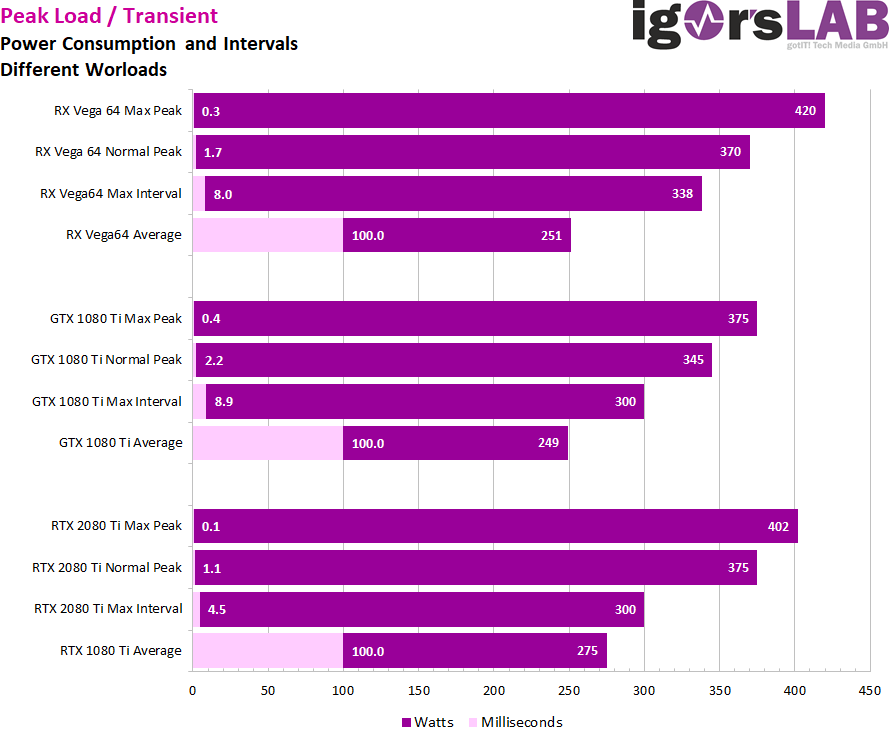
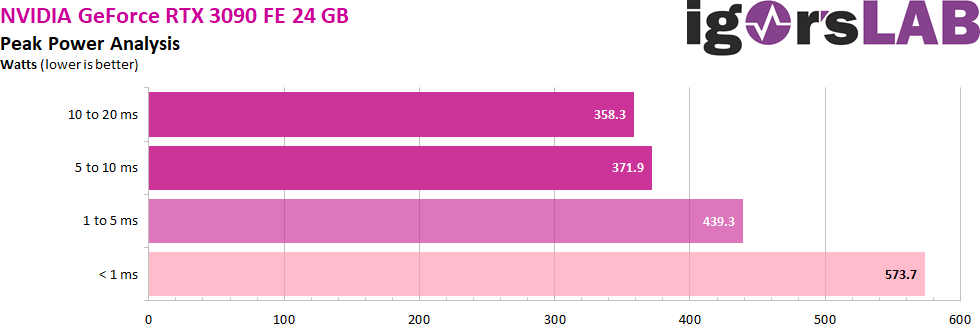
Electromagnetic interference and issues with the electrical installation (e.g., ground loops) can cause unintended behavior of electronic components, potentially increasing input lag (12).
Here are some resources: 12
Make sure your home is properly grounded. TT systems are preferred due to low interference (123).
Avoid unnecessarily long cables and prefer thick shielded ones.
Disconnect everything you don't use from your motherboard to minimize the risk of coupling and interference. E.g., front USB, front audio, (RGB) LEDs (12), hard drive activity LED, system power LED, reset button etc.
The convenience of cordless mice is very appealing. However, there are significant drawbacks. Nowadays, 2.4 GHz is everywhere, causing a lot of interference. Additionally, the inherent transmission overhead and aggressive power saving mechanisms (12) affect both motion (1234567891011) and click latency.
DPI
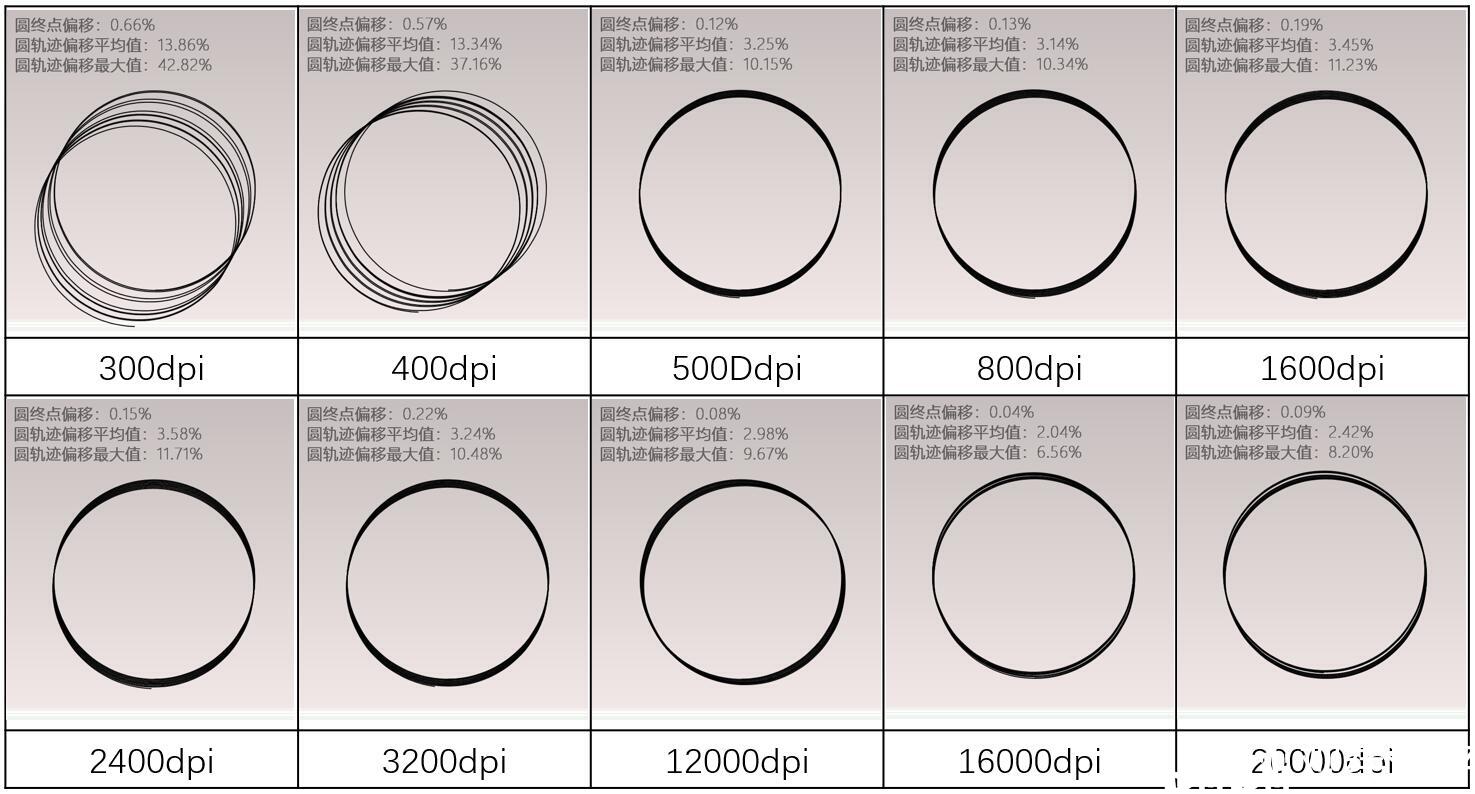
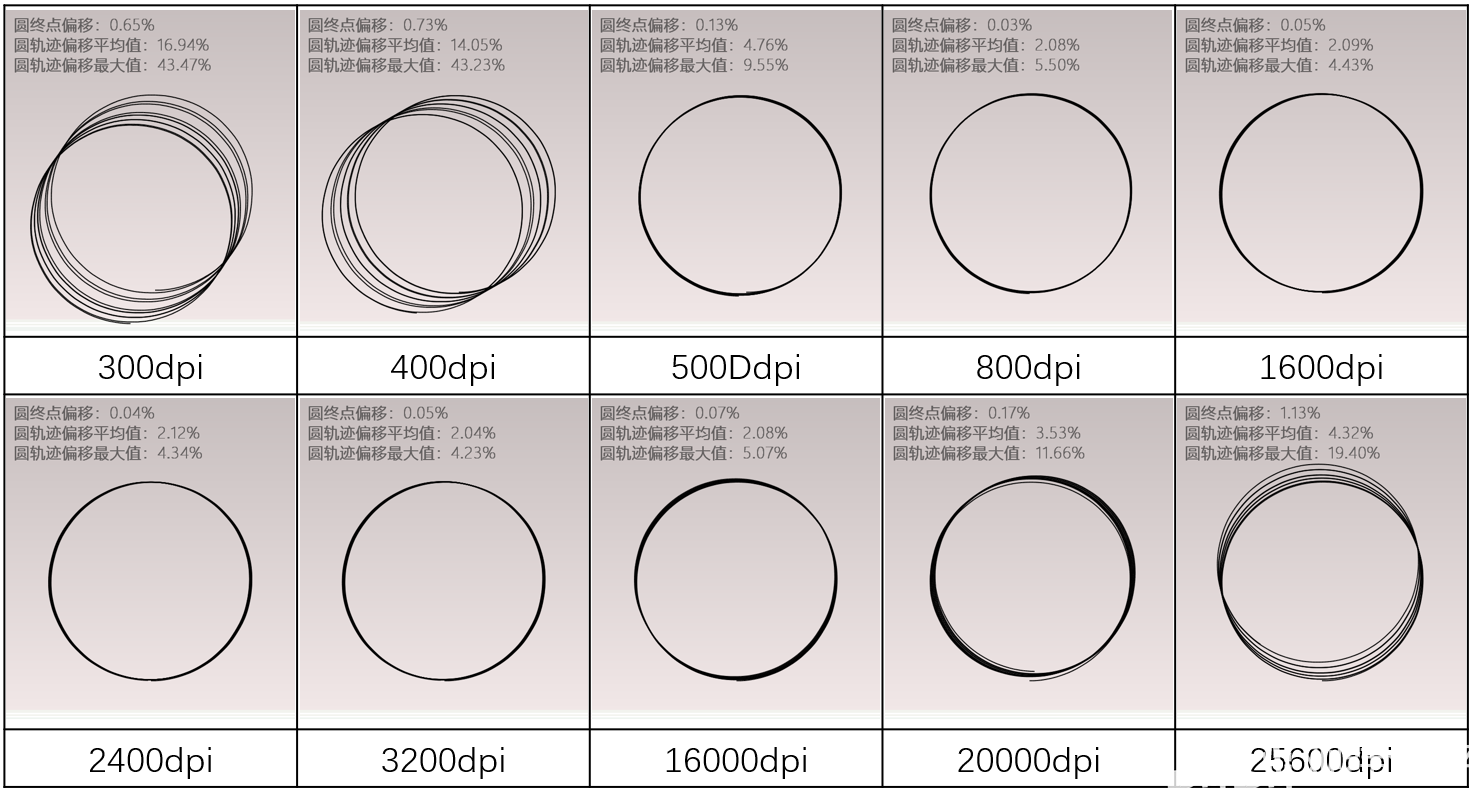
Depending on your mouse, preferred cm/360°, mouse pad and FOV in games, you may want to experiment with different DPI. Higher DPI reduces the latency between hand motion and the sensor acknowledging a change (1234) and improves motion clarity and accuracy (1234). Beware of smoothing and other jitter reduction technologies kicking in at various thresholds. To counteract the increased sensitivity on the Desktop and in game menus, you can adjust the Windows sensitivity.
Finding your individual approximate point of diminishing returns (taking 1000 Hz as example):
Run MouseTester and move your mouse unidirectionally at a velocity similar to your slowest realistic tracking speed.
Set the graph to Interval vs. Time.
Values greater than or equal to 2 ms indicate that the mouse hasn't reported motion data in the previous value - 1 poll(s) (assuming other factors such as system or interference have been ruled out).
Raise your DPI until all polls contain motion data.
Polling rate
Higher polling rate reduces latency and improves motion clarity (12).
A balloon pump will do the job without risking physical damage to the polycarbonate lens (123).
Monitor
Capped FPS vs. VRR vs. uncapped FPS
There are a lot of variables involved: GPU workload, sustained frame rate, type of frame rate limiter (some limiters have large variation), OS, monitor's refresh rate, NVIDIA Reflex, AMD Anti-Lag 2 etc.
To prevent mistiming, you can either use VRR or cap your FPS at various values depending on your monitor's refresh rate. Consider your 1% and 0.1% Lows when choosing a value. There are two formulae (X = monitor's refresh rate, Y = any positive integer):
Generally, follow the principle of "Don't use it? Disable it." E.g., disable all power saving features, unused network/audio/SATA controllers, unused USB/PCI/DIMM/SATA ports, (RGB) LEDs that can't physically be disconnected etc.
I called this category clocking rather than overclocking because in the end all you do is run your components at their safe capabilities (which may not always be overclocking due to temperature, for example).
A stable system should be able to run anything indefinitely. A single error is one too many.
When raising clocks, always benchmark every change and verify that the performance scales positively and the variation is very low. Due to error correction, higher clocks may not cause errors in stress tests but can result in "identical" performance, worse performance or higher variation.
Beware of degradation by high voltage, temperature and current.
GPU and ambient temperature (e.g., summer vs. winter) will significantly impact memory temperature. Here are some things you can do while stress testing to simulate a more realistic scenario:
Run a GPU heat generator.
Mount a hair dryer to blow hot air on the memory.
Turn off case fans.
Turn up room heaters.
Avoid monitoring programs (e.g., HWiNFO) while stress testing, since they have a large performance impact.
CPU and RAM should be treated as one unit and adjusted and stress tested together.
Conclusion: Maintaining near ambient temperature of components is desirable.
Controlling temperature
Manually set voltages and clocks of all components.
Use zip-ties to extend fans over VRMs, RAM and PCH. Avoid CPU air coolers due to incompatibility with dedicated VRM and RAM cooling.
Liquid cool all components (expensive).
Windows
The never-ending background bloat of Windows reduces performance significantly (123).
Note: I am not advocating using pre-made ISOs; on the contrary, you should make your own.
I highly recommend setting up a multi-boot environment to separate the gaming and the "can-be-bloated" operating system. Keeping your programs and files on a different partition (separate from operating system partitions) is also convenient due to all operating systems having shared access to everything and the ease of reinstalling either of them without having to back up your data.
As usual, disable everything you don't explicitly need and avoid installing unnecessary and bloated drivers (included in, e.g., Realtek audio or gaming peripheral software).
A lot of the default system tools lack functionality. For example, the Task Manager is an inaccurate representation of system load since it only displays core usage on a very superficial level. It doesn't account for things like context switching, which can be very expensive.
Here are some supplements for various system tools (Sysinternals and NirSoft have a lot more):
Whenever possible, use portable versions of programs. Sometimes installers come with background services/drivers which may run even if the program is not running. Scoop can help you manage them.