Getting started with **MindForger**.
Table of contents:
* [Basics](#basics)
* [Workspace](#workspace)
* [Notebook](#notebook)
* [Note](#note)
* [Create Workspace](#create-workspace)
* [Create Notebook](#create-notebook)
* [Create Note](#create-note)
* [Edit Note](#edit-note)
* [Fix Grammar with Wingman](#fix-grammar-with-wingman)
* [Notes Outliner](#notes-outliner)
* [Find Note](#find-note)
* [Delete Notebook](#delete-notebook)
* [Video tutorials](#video-tutorials)
* [🎞 MindForger: From Markdown editor to thinking notebook](#mindforger--from-markdown-editor-to-thinking-notebook)
* [🎞 MindForger: First steps](#mindforger--first-steps)
# Basics

This section aims to explain basic MindForger terminology:
* [Workspace](#workspace)
* [Notebook](#document---notebook)
* [Note](#section---note)
In short:
* The MindForger [workspace](#workspace) is analogous **the desktop** of an office desk.
* The MindForger [notebook](#notebook) analogous to **a notepad** on the desktop.
* A MindForger [note](#note) is analogous to **a page with the note** from a **notepad**.
Let's describe basic terms in more detail.
## Workspace

MindForger **workspace**:
* ... contains [notebooks](#notebook)
* ... stored in a directory on the filesystem
* ... has its own configuration
* ... might be empty
## Notebook

MindForger **notebook**:
* contains [notes](#note)
* organizes notes in hierarchy - [outline](User-documentation#outliner)
* can be marked with [tags](User-documentation#tag)
* is typically devoted to a specific topic such as a project plan, family gifts or lessons learned
## Note

MindForger **note**:
* contains text, images and links
* can link notebooks and notes (within the [Workspace](#workspace)) and/or files and URLs
* can be marked with [tags](User-documentation#tag)
# Create Workspace
[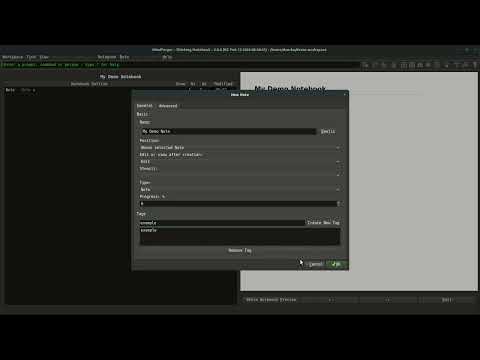](https://www.youtube.com/watch?v=ahThnkU9d90)
Create **new** [workspace](#workspace) as follows:
1. open menu `Workspace`
1. choose `New` menu item
1. choose `Workspace` sub-menu item
1. `New Workspace` dialog is opened:
- type in workspace name
- feel free to modify where to store the workspace on the filesystem
1. click New to create the workspace
## Create Notebook
Create **new** [notebook](#notebook) as follows:
1. open menu `Notebook`
- 💡 if `Notebook` menu is disabled,
then open list of notebooks (menu `View` / `Notebooks`) or notebooks tree
(menu `View` / `Notebooks Tree`)
1. choose `New` menu item
1. `New Notebook` dialog is opened:
- type in notebook name
- feel free modify notebook creation options and tags
1. click OK to create the notebook
### Create Note
Create **new** [note](#note) as follows:
1. open menu `Note`
- 💡 if `Note` menu might is disabled,
then open the [notebook](#notebook) in which you want to add the note
1. choose `New` menu item
1. `New Note` dialog is opened:
- type in note name
- feel free modify note creation options and tags
1. click OK to create the note
### Edit Note
When you are viewing a [note](#note), you can edit it using one of the options below:
* **Double click** the mouse preview.
* Use Ctrl-e keyboard shortcut (Linux/Win).
* Use Alt-n e keyboard shortcut (Linux/Win).
Once you finish editing the [note](#note) you can save it and preview using one of the options below:
* Use Alt-⬅ keyboard shortcut.
* Click Save & Leave button at the bottom of the editor.
### Fix Grammar with Wingman
[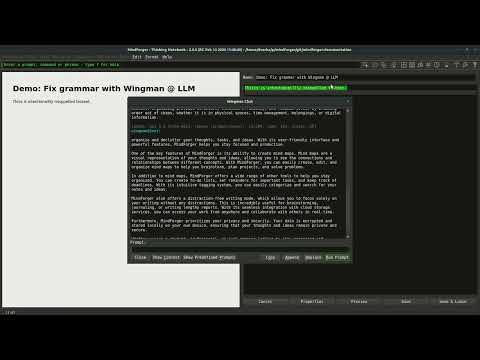](https://www.youtube.com/watch?v=QLX9CWzzEa8)
While you are editing a [note](#note), you can **fix grammar** of the text as follows:
1. select a text withing the note editor
1. open Wingman chat window using Ctrl-/ (Linux/Win)
1. specify prompt:
- custom prompt: type in `Fix grammar: #TEXT` (`#TEXT` is replaced by the text you selected in the note editor)
- predefined prompt: choose `Fix grammar: #TEXT` from the drop down
1. click `Run`
1. check LLM model answer
1. if you are satisfied, then click `Replace` and the fixed text from the Wingman chat window
will replace the text in the note
... Wingman can do **much more**:
* complete sentences, paragraphs or portions of the text
* reformulate / rewrite the text - formally, informally, in a slang, like a person (Kafka), etc.
* provide synonyms and antonyms
* explain
... and much more - for more details see [Wingman](User-documentation#wingman).
# Notes Outliner
[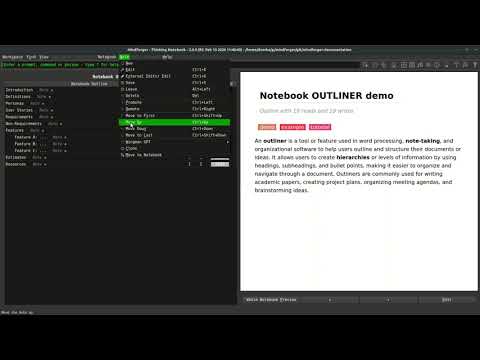](https://www.youtube.com/watch?v=LUqavHfKhnc)
An **outliner** is a feature used in word processing, **note-taking**, and organizational software to help users outline and structure their ideas. Outlining actions in MindForger allow users to create **hierarchies** or levels of information by, making it easier to organize and navigate through a [Notebook](#notebook):
1. open a [notebook](#notebook)
1. choose and view a [note](#note) in the note tree
1. open menu `Note`
1. choose one of the **outlining actions**
- `Promote`
- to move note one level **up** in hierarchy (depth)
- `Demote`
- to move note one level **down** in hierarchy (depth)
- `Move to first`
- move note to **the first** from the top on its level (depth)
- `Move up`
- move note one position **up** on its level (depth)
- `Move down`
- move note one position **down** on its level (depth)
- `Move to last`
- move note to **the last** from the top on its level (depth)
Outlining is a powerful tool that allows you to organize your thoughts and make your remarks structured, comprehensible, and scalable.
# Find Note
[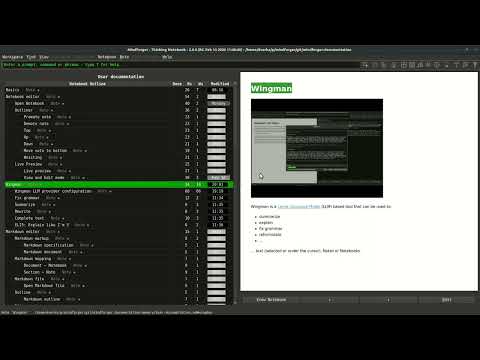](https://www.youtube.com/watch?v=a-i7EU58H7Y)
You can **find** [notebooks](#notebook) and [notes](#note) using the following attributes:
* name
* text phrase
* tag
For instance, to find [notes](#note) by text phrase:
1. open menu `Find`
1. choose `Full-text search` menu item
1. `Search` dialog is opened:
- type in **search phrase**
1. click Search to search for notes containing the phrase
1. preview and select a note to open in the search results
Similarly, for other search options.
# Delete Notebook
[](https://www.youtube.com/watch?v=gtGbCdb_7c8)
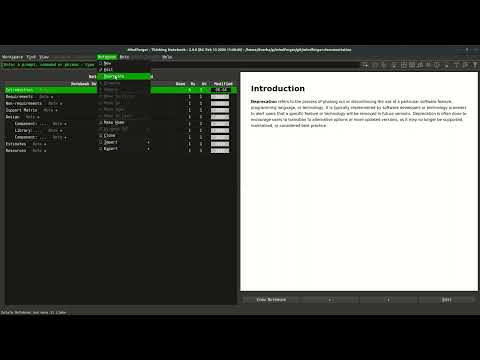
[Notebook](#notebook) can be ~~deleted~~ **deprecated** as follows:
1. open the [notebook](#notebook) you want to delete (be sure that you are not editing a note)
1. open menu `Notebook`
1. choose `Deprecate` menu item
1. `Deprecate Notebook` dialog is opened
1. click Yes to deprecate the notebook
As you can see, [notebooks](#notebook) in MindForger are not deleted,
but **deprecated** - they are moved to a **limbo** directory. To
purge or resurrect deprecated notebook:
1. open menu `View`
1. choose `Limbo`menu item
1. use you file manager to manipulate the notebook
# Video tutorials
MindForger **video** tutorials:
* 🎞 [playlist](https://www.youtube.com/playlist?list=PLkTlgXXVRbUDdvysdslnAt_mU15oNPWNS) on YouTube
## 🎞 MindForger: From Markdown editor to thinking notebook
[](https://www.youtube.com/watch?v=PlW2e1X3O-I)
## 🎞 MindForger: First steps
[](https://www.youtube.com/watch?v=UR49y3uNurs)