
Surfingkeys is a browser extension (for Google Chrome, Chromium-based browsers, Firefox, and Safari) that provides keyboard-based navigation and control of the web in the spirit of the VIM editor. But it's not just for VIM users; it's for anyone who needs more shortcuts for their own functions.
Surfingkeys is created with all settings described in JavaScript, so it's easy for anyone to map any keystrokes to their own defined JavaScript functions. For example,
api.mapkey('<Ctrl-y>', 'Show me the money', function() {
    api.Front.showPopup('a well-known phrase uttered by characters in the 1996 film Jerry Maguire (Escape to close).');
});
Surfingkeys does its best to make full use of the keyboard for web browsing, but there are some limitations from Google Chrome itself; please see the Brook Build of Chromium for a more thorough experience.

- Surfingkeys - Chrome Web Store for Google Chrome, Chromium based browsers
- Surfingkeys – Get this Extension for 🦊 Firefox for Firefox
- Surfingkeys - Microsoft Edge Addons for Microsoft Edge
- Surfingkeys on the Mac App Store for Safari, works on both macOS and iOS, except that on iOS an external keyboard must be connected to your device. There is one exception of the special feature designed for iOS devices --
Search selected with.
| Features \ Browsers | Chromium family (above 45) | Firefox (above 57) | Safari (above 15) |
|---|---|---|---|
| Follow links | Y | Y | Y |
| Surfingkeys modes | Y | Y | Y |
| Omnibar | Y | Y | partly |
| Search selected with | Y | Y | Y |
| Vim-like marks | Y | Y | Y |
| Switch tabs | Y | Y | Y |
| Windows management | Y | Y | N |
| Commands | Y | Y | Y |
| Smooth scroll | Y | Y | Y |
| Session management | Y | Y | Y |
| Repeats action by pressing number before mapkey | Y | Y | Y |
| Hotkey to toggle Surfingkeys | Y | Y | Y |
| VIM editor and Emacs editor | Y | Y | Y |
| Dot to repeat previous action | Y | Y | Y |
| Capture page | Y | Y | Y |
| PDF viewer | Y | N | N |
| Sync across devices | Y | N | Y |
| Tab Groups | Y | Y | N |
| Proxy | Y | N | N |
| Markdown preview | Y | Y | N |
- Feature list
- Quick start
- Follow links
- Surfingkeys modes
- Omnibar
- Search selected with
- Vim-like marks
- Switch tabs
- Windows management
- Commands
- Smooth scroll
- Session management
- Repeats action by pressing number before mapkey
- Hotkey to toggle Surfingkeys
- Proxy settings
- VIM editor and Emacs editor
- Dot to repeat previous action
- Markdown preview
- Capture page
- PDF viewer
- Edit your own settings
- License
- All settings are set up within a javascript file, which makes it easy to create mappings to user-customized functions.
- A large cursor in visual mode, which makes visual mode better.
- Search selected with, which works in both normal mode and visual mode.
- Help messages are automatically generated for mappings.
*to search word under cursor in visual mode.- Scroll actions like page up/down (
ed) work not only for the top window but also for scrollable DIVs. wto switch frames if there are any.- Session management
- A versatile bookmark/url finder
- Count prefixes to repeat actions
- Use vim editor to edit input on page
- Dot to repeat previous action
;pmto preview markdown- Emoji completion in Insert mode
- Rich hints for keystroke
- Everything in Surfingkeys works for PDFs
- Regional Hints mode
- Chat with LLM
After you install the extension from Chrome Web Store or Firefox Add-ons, open a site you'd like to browse. Then press ? or u to take a quick look at the default mappings first. Press Esc to hide the usage popover.
Try some mappings described in the usage popover. For example, press e to scroll a page up, d to scroll a page down, ;e to open settings page.
?to show help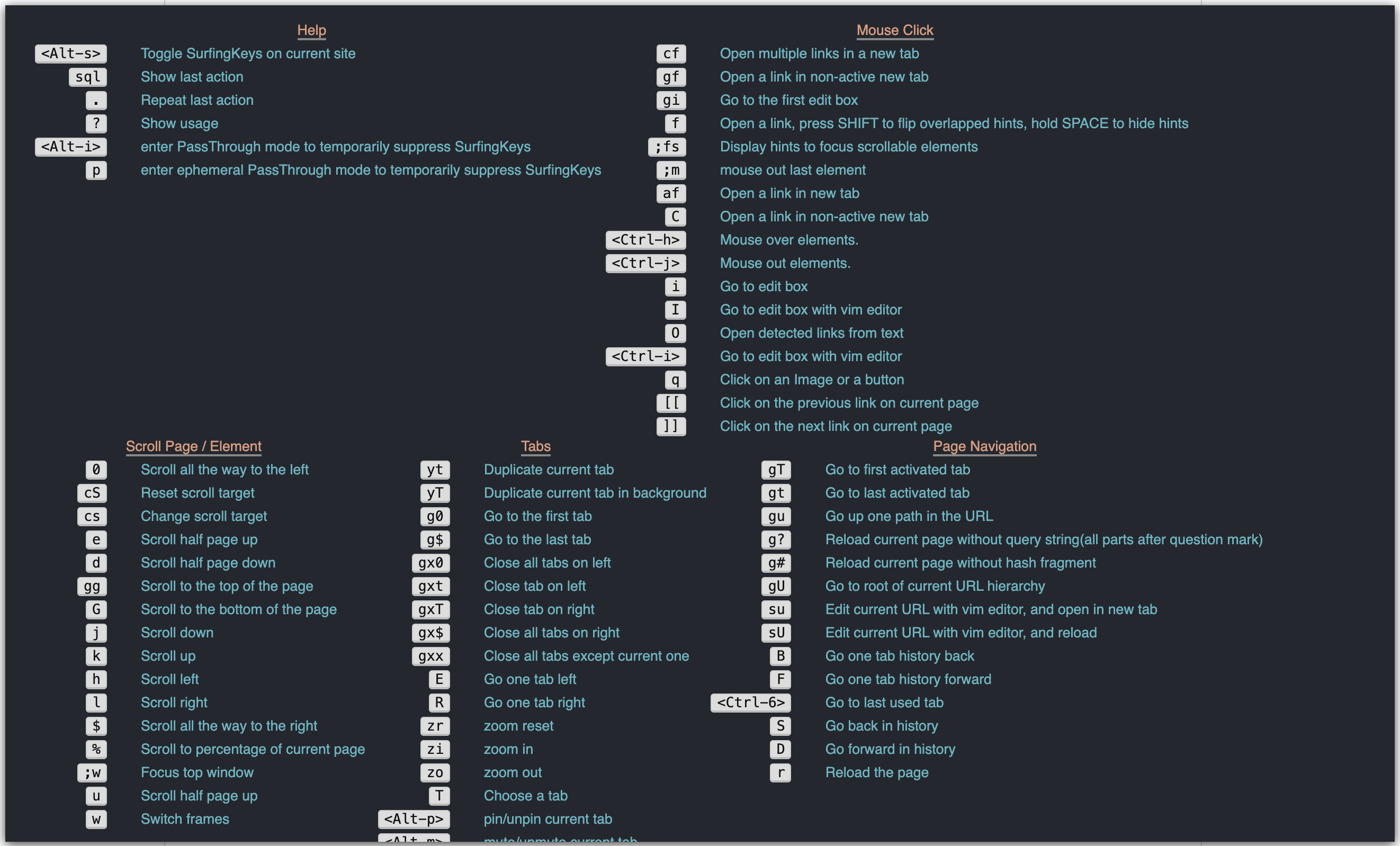
tto search bookmarks/history
/to find in current page
fto follow links
vto toggle visual mode
Tto switch tabs
There are three modes in Surfingkeys: normal, visual and insert.
When you open a page, it enters normal mode automatically. All mappings added with mapkey work in this mode.
Press v to toggle visual mode. You'll see an indicator at the bottom of the current page - Caret or Range, and a large cursor on the page. The cursor is made large for visibility, as sometimes it's not easy for humans to locate a normal cursor on a web page.
Caret indicates that the cursor is moved when you press jkhl, Range indicates that you'll select text when moving the cursor.
Now here is a small practice,
- press
v, you'll seeCaret - use the VIM key bindings to move the cursor somewhere.
- press
vagain, you'll seeRange. - use the VIM key bindings to select some text.
- press
sgto see what will happen. - press
vagain to go back to normal mode.
All mappings added with vmapkey work in this mode, with some built-in mappings like those in VIM - j k h l b w 0 $ etc.

zzmake cursor at center of window.fforward to next char.Fbackward to next char.;repeat latest f, F.,repeat latest f, F in opposite direction.
Press f to enter Hints mode to follow links. There are several other keystrokes to enter Hints mode with different behaviors, such as cf for continuous following, af for active following.
The default hint characters for links are asdfgqwertzxcvb. Hints mode quits when a non-hint key is pressed. Add the line below to your settings to make it right-handed:
api.Hints.setCharacters('yuiophjklnm'); // for right hand
When hints are overlapped, press Shift to flip them. Hold space to hold hints temporarily, release space to restore hints.
Hints are placed at the center of target links; you could add the line below to your settings to align them left.
settings.hintAlign = "left";
Press L to enter regional Hints mode by picking a visually large element. There are some built-in actions in regional Hints mode,
Escto exit regional hints modectto copy text from target elementchto copy HTML from target elementdto delete target elementlto chat with AI about the text of the elementpto select the parent element of the target element
When focus is switched into any editable element by whatever means (i hints, f hints, or mouse click), Insert mode is on.
All mappings added with imapkey work in this mode.
Ctrl-ito open vim editor to edit.Ctrl-'to toggle quotes in an input element, which is useful for search engines like Google.Ctrl-eto move the cursor to the end of the line.Ctrl-ato move the cursor to the beginning of the line; useCtrl-fin Windows to avoid conflict with select all.Ctrl-uto delete all entered characters before the cursor.Alt-bto move the cursor backward 1 word.Alt-fto move the cursor forward 1 word.Alt-wto delete a word backwards.Alt-dto delete a word forwards.Ctrl-gto correct the grammar of the current input with LLM.
imap and iunmap work for insert mode.
api.imap(',,', "<Esc>");        // press comma twice to leave current input box.
api.imap(';;', "<Ctrl-'>");     // press semicolon twice to toggle quote.
When a user inputs a colon and 2 (set by settings.startToShowEmoji) characters such as :gr in insert mode, Surfingkeys will try to find matching emoji and list them if any are found.

If you want this feature disabled completely, use below settings:
api.iunmap(":");
If you'd like emoji suggestions popup as soon as you input colon, use below:
settings.startToShowEmoji = 0;
Find is not actually a mode; it's just another way to enter visual mode. Press / to open the find bar, which sits at almost the same position as the Mode indicator, and type something there. All occurrences of your input will be highlighted. Press Enter to finish the finding, and you're in Caret visual mode now; press n to find next, N to find previous.
Press Ctrl-Enter to find the exact whole word entered, like with the input \bkeyword\b.
Pressing Alt-i to enter PassThrough mode gives you a chance to temporarily suppress SurfingKeys, which means Surfingkeys will not care about any key press until you leave this mode by pressing Esc. In this mode, you could use built-in shortcuts from any site itself. Please see Feature Request: implement Vimium-style insert mode · Issue #656 for why we brought this in and the difference between Alt-i and Alt-s.
Pressing p enters an ephemeral PassThrough mode, which automatically quits after 1 second.
Users can specify the pages where Surfingkeys will lurk until it is called out by Alt-i or p (for the ephemeral case), such as
settings.lurkingPattern = /https:\/\/github\.com|.*confluence.*/i;
If the loading page matches with the lurkingPattern, Surfingkeys will enter lurk mode by default, in which mode only Alt-i and p are registered by Surfingkeys to activate normal mode. When user presses Esc or timeout, Surfingkeys reverts back to lurk mode.
API lmap can be used to change the shortcuts, for example,
api.lmap("<Alt-j>", "<Alt-i>");
The extension icon in the toolbar reflects the current status of Surfingkeys:
- Grey -- disabled.
- Half grey/half color -- lurking.
- Color -- enabled.
The omnibar provides various functions that need user input, for example,
- Open URLs (from both bookmarks and history) with
t - Open bookmarks with
b - Open search engines with
og/ow... - Open commands with
:
Enterto open selected item and close omnibar.Ctrl-Enterto open selected item, but keep omnibar open for more items to be opened.Shift-Enterto open selected item in current tab and close omnibar. If you'd like to open in current tab by default, please usego.Tabto forward cycle through the candidates.Shift-Tabto backward cycle through the candidates.Ctrl-.to show results of next pageCtrl-,to show results of previous pageCtrl-cto copy all listed items
In omnibar opened with t:
Ctrl-d to delete from bookmarks or history
In omnibar opened with b:
Ctrl-Shift-<any letter> to create a vim-like mark

cmap can be used for the Omnibar to change mappings, for example:
api.cmap('<Ctrl-n>', '<Tab>');
api.cmap('<Ctrl-p>', '<Shift-Tab>');
ab is a shortcut to bookmark the current page. After you press ab, an Omnibar is displayed for you to choose a folder in which to place the new bookmark. If you want to place the new bookmark into a new folder, you can type the folder name -- which must end with / -- in the Omnibar. For example, I choose folder /Bookmarks Bar/tool/, and append abc/, then current page will be bookmarked into /Bookmarks Bar/tool/abc/. If there is no / behind abc, abc will be used as the title of the new bookmark.
My favorite feature from when I used Firefox. Both Firefox and Chrome extensions provide it through the context menu; Surfingkeys provides it through key mappings. By default, when you press sg in normal mode, it will search the selected text with Google; if there is none selected, it will search text from the system clipboard with Google. In visual mode, it will search the selected text with Google.
The g in sg is a search alias for Google; there are some other built-in search aliases, like w for Bing. So press sw to search the selected text with Bing. Refer to Add search alias to omnibar to add your own search alias, especially those search engines for company inside.
Besides that, there is sog, to search the selected text only within this site with Google. For sog, s is the search_leader_key, o is the only_this_site_key, g is the search alias.
The search_leader_key s plus the capital alias G will search the selected text with Google interactively; all other search aliases and those you added through API addSearchAlias work in the same way.
You can create vim-like marks by pressing m followed by a word character (0-9 / a-z / A-Z), which is used as the mark name. For example, if you press ma on this page, you'll create a mark named a which points to this page. Then pressing 'a anywhere will jump to this page.
In this way, the created mark always points to the current URL. You can also create vim-like marks from the bookmarks. Try the following steps:
- press
bto open bookmarks. - type something to locate the URL you'd like to create vim-like mark for.
- Hold Ctrl + Shift, press a mark name, such as
f.
Then afterwards 'F will open that URL directly.
This is very useful for pages you access frequently. Press om to check out all the vim-like marks you have created.
By default, pressing T shows all opened tabs in an overlay; pressing the hint character then switches to the related tab.

If there is no hint label matched with your pressing, omnibar will be opened. So you can always press a non-hint character such as ; or j to launch omnibar directly from the tabs overlay.
There is also settings.tabsThreshold here. When the total number of opened tabs exceeds settings.tabsThreshold, the omnibar will be used for choosing tabs.

If you prefer to use omnibar always, use below mapping:
api.mapkey('<Space>', 'Choose a tab with omnibar', function() {
    api.Front.openOmnibar({type: "Tabs"});
});
which works same as:
settings.tabsThreshold = 0;
The tabs are displayed in MRU order by default, either in the omnibar or the overlay. If you want them in natural order, use:
settings.tabsMRUOrder = false;
W brings up a popup of windows; you can select one of them and press Enter to move the current tab to the selected window. If there is only one window, W will move the current tab to a new window directly.
;gt opens the Omnibar with all tabs not from the current window; you can type some text to filter the tabs, then press Enter to gather the filtered tabs into the current window. ;gw gathers all tabs into the current window.
So to group your tabs into windows, you can use W to move one tab to a specified window or use ;gt to gather filtered tabs into the current window.
: opens the omnibar for commands, where you can execute any pre-defined commands there. The result will be displayed below the omnibar.
// create shortcuts for the command with different parameters
api.map(';pa', ':setProxyMode always');
api.map(';pb', ':setProxyMode byhost');
api.map(';pd', ':setProxyMode direct');
Besides commands, you can also run javascript code.

Smooth scroll works for any scrollable element. It is on by default; to turn it off, use:
settings.smoothScroll = false;
j/k scroll in one step with a size of 70; you could change it as below:
settings.scrollStepSize = 140;
To create a session in Chrome with Surfingkeys is to save the URLs of all tabs; to open a session is to open all of its URLs in separate tabs. So a session is basically a named list of URLs.
ZZwill save all current tabs into a session namedLASTthen quit.ZRwill restore the session namedLAST.ZQwill just quit.
You can create multiple sessions with different names in command mode. Press : to open omnibar for commands, then input:
createSession works
Surfingkeys will create a session named works for you, to open the session with command input as:
openSession works
To list all your saved sessions:
listSession
To delete a session:
deleteSession works
If you need to repeat some action several times, just press a number before the mapkey, such as 3d, which will scroll down 3 pages. Repeats also work for tab navigation. For example, if you're now on the 1st Tab and you want to switch to the 4th Tab,
- press
3Rto achieve that 3Ewill switch back to 1st Tab.
Another example is to move one tab. Say you're on the 12th Tab of 23 tabs.
11<<will move current tab to beginning.10>>will move current tab to end.
Usually, you need not count the number; you can just prefix a large number such as 99<< if you want to move a tab to the beginning or end.
By default, Alt-s toggles Surfingkeys for the current site. When Surfingkeys is turned off, all mappings stop working except the hotkey. To change the hotkey, use the settings below:
api.map('<Ctrl-i>', '<Alt-s>'); // hotkey must be one keystroke with/without modifier, it can not be a sequence of keystrokes like `gg`.
When Surfingkeys is turned off on some site by Alt-s, the status will be persisted in settings, for example,
"blocklist": {
    "https://github.com": 1
},
Alt-s once more will remove it from settings.blocklist. The settings data is not always presented in snippets; you can use yj to dump all settings into the clipboard, then paste it into your text editor to check.
Another way to disable Surfingkeys is to use settings.blocklistPattern, please refer to regex for disabling.
SwitchySharp is a great extension for switching proxies, but my use case with it is very simple:
- create a profile using PAC script.
- maintain site list in the PAC script, use proxy if the site being accessed is in the list.
- whenever I come into a site blocked by something, I add it to the list in PAC script.
- click the SwitchySharp icon to reload the profile.
- casually I click the SwitchySharp icon to switch profile between
directandpac_script.
To avoid manually editing PAC script and reloading/switching profile by clicking SwitchySharp icon, I replaced SwitchySharp by integrating proxy settings into Surfingkeys, and provides related commands and shortcuts.
-
setProxy, to set proxy, some examples:
setProxy 192.168.1.100:8080 setProxy 127.0.0.1:1080 SOCKS5 -
setProxyMode, to set proxy mode; there are six modes: direct, byhost, bypass, always, system and clear.
direct Chrome will connect to all sites directly. byhost Chrome will only connect to sites added in settings through related proxy. You could add multiple pairs of `proxy` and `hosts`, for hosts matched with `hosts` `proxy` will be used. bypass Chrome will connect to all sites through proxy, with specified hosts excluded. always Chrome will connect to all sites through proxy. system Use proxy configuration taken from the operating system. clear Surfingkeys will not take control of proxy settings, this is the default mode. -
cp, toggle proxy for current site. -
;pa, shortcut for:setProxyMode always -
;pb, shortcut for:setProxyMode byhost -
;pc, shortcut for:setProxyMode clear -
;pd, shortcut for:setProxyMode direct -
;ps, shortcut for:setProxyMode system
Thanks to ACE for the vim editor, Surfingkeys integrates ACE for the vim editor. The vim editor is used:
- to edit any input on html page
- to edit URL to open in new tab
- to edit settings
You could change to Emacs keybindings for the editor by adding below settings:
settings.aceKeybindings = "emacs";
With Emacs keybindings, use C-x C-s to save your input.
In normal mode, press capital I, then use a hint letter to pick an input box. A vim editor is opened for you to edit text. The vim editor is opened in slightly different ways for <input>, <textarea>, and <select> elements.
For <input> elements, the vim editor has only one line, and you use vim key bindings to edit your text. Then press Enter or :w to write your text back to the <input> element.

For <textarea> elements, the vim editor is opened in bigger size. After you complete your edits, press Ctrl-Enter or :w to write your text back to the <textarea> element.

For <select> elements, the vim editor is again opened in a bigger size. Instead of editing the text, search for the desired option and jump to the line, then press Enter to select it. This is handy for <select> elements which have lots of options.

Esc or :q to quit vim editor without writing text back.
Tab completion works with all words on current page, Space to choose a match from popup.
If you enter insert mode with i or mouse click, you will edit your input in normal way. You could also open vim editor at that time by pressing Ctrl-i.
Remember that in insert mode, press Ctrl-i to open the vim editor.
;u opens the vim editor to edit the current URL, then Enter or :w opens the input URL, which works just like an address bar with vim-binding keys.
Tab completion works with all URLs from bookmark/history, Space to choose a match from popup.

;e to open settings editor, :w to save settings.
All keystrokes in normal mode are repeatable by dot, except those mapped with repeatIgnore as true, for example,
api.mapkey('se', '#2My magic se', function() {
    // your code here
}, {repeatIgnore: true});
Then . will not repeat your magic action with se, even if it was just pressed.
- copy your markdown source into clipboard.
;pmto open markdown preview, which will preview markdown from clipboard.- Then on the preview page, another
;pmwill open vim editor to edit markdown source. :wqto refresh preview.rto reload markdown source from clipboard.

By default, Surfingkeys uses this markdown parser to preview markdown. If you'd like to use the github markdown API to parse your markdown, add the line below to your settings:
settings.useLocalMarkdownAPI = false;
There are circumstances where you want to take a screenshot of a page; the shortcuts below can help, especially for a long page or for some scrollable DIV on the page.
ygto capture current page.yGto capture current full page if it is scrollable.ySto capture current scroll target.
After pressing one of the above shortcuts, you'll see a popup of the captured image, on which you could then right-click with a mouse (😢) to save it as or copy it into the system clipboard.
To make Surfingkeys work for PDF files, Surfingkeys integrates the PDF viewer from the notable pdf.js. When a PDF file is opened in Chrome, the PDF viewer is launched, and you can use everything from Surfingkeys then.
If you would like to use the original PDF viewer provided by Chrome itself, use ;s to toggle that.
Some functionalities are also available when you're using the original PDF viewer, but some, such as smooth scroll/visual mode, etc., won't be available.
| key | default value | explanation |
|---|---|---|
| settings.showModeStatus | false | Whether always to show mode status. |
| settings.showProxyInStatusBar | false | Whether to show proxy info in status bar. |
| settings.richHintsForKeystroke | 500 | Timeout(ms) to show rich hints for keystroke, 0 will disable rich hints. |
| settings.useLocalMarkdownAPI | true | Whether to use chjj/marked to parse markdown, otherwise use github markdown API. |
| settings.focusOnSaved | true | Whether to focus text input after quitting from vim editor. |
| settings.omnibarMaxResults | 10 | How many results will be listed out each page for Omnibar. |
| settings.omnibarHistoryCacheSize | 100 | The maximum of items fetched from browser history. |
| settings.omnibarPosition | "middle" | Where to position Omnibar. ["middle", "bottom"] |
| settings.omnibarSuggestion | false | Show suggestion URLs |
| settings.omnibarSuggestionTimeout | 200 | Timeout duration before Omnibar suggestion URLs are queried, in milliseconds. Helps prevent unnecessary HTTP requests and API rate-limiting. |
| settings.focusFirstCandidate | false | Whether to focus first candidate of matched result in Omnibar. |
| settings.tabsThreshold | 100 | When total of opened tabs exceeds the number, Omnibar will be used for choosing tabs. |
| settings.verticalTabs | true | Whether to show tab pickers vertically aligned. |
| settings.clickableSelector | "" | Extra CSS selector to pick elements for hints mode, such as "*.jfk-button, *.goog-flat-menu-button". |
| settings.clickablePat | /(https?|thunder|magnet)://\S+/ig | A regex to detect clickable links from text, you could use O to open them. |
| settings.editableSelector | div.CodeMirror-scroll,div.ace_content | CSS selector for additional editable elements. |
| settings.smoothScroll | true | Whether to use smooth scrolling when pressing keys like j/k/e/d to scroll page or elements. |
| settings.modeAfterYank | "" | Which mode to fall back after yanking text in visual mode. Value could be one of ["", "Caret", "Normal"], default is "", which means no action after yank. |
| settings.scrollStepSize | 70 | A step size for each move by j/k |
| settings.scrollFriction | 0 | A force that is needed to start continuous scrolling after initial scroll step. A bigger number will cause a flicker after initial step, but help to keep the first step precise. |
| settings.scrollFallback | false | Fallback to document-level scrolling when the focused element cannot scroll in the requested direction. |
| settings.nextLinkRegex | /((>>|next)+)/i | A regex to match links that indicate next page. |
| settings.prevLinkRegex | /((<<|prev(ious)?)+)/i | A regex to match links that indicate previous page. |
| settings.hintAlign | "center" | Alignment of hints on their target elements. ["left", "center", "right"] |
| settings.hintExplicit | false | Whether to wait for explicit input when there is only a single hint available |
| settings.hintShiftNonActive | false | Whether new tab is active after entering hint while holding shift |
| settings.defaultSearchEngine | "g" | The default search engine used in Omnibar. |
| settings.blocklistPattern | undefined | A regex to match the sites that will have Surfingkeys disabled. |
| settings.focusAfterClosed | "right" | Which tab will be focused after the current tab is closed. ["left", "right", "last"] |
| settings.repeatThreshold | 9 | The maximum of actions to be repeated. |
| settings.tabsMRUOrder | true | Whether to list opened tabs in order of most recently used beneath Omnibar. |
| settings.historyMUOrder | true | Whether to list history in order of most used beneath Omnibar. |
| settings.newTabPosition | 'default' | Where to new tab. ["left", "right", "first", "last", "default"] |
| settings.interceptedErrors | [] | Indicates for which errors Surfingkeys will show error page, so that you could use Surfingkeys on those error pages. For example, ["*"] to show error page for all errors, or ["net::ERR_NAME_NOT_RESOLVED"] to show error page only for ERR_NAME_NOT_RESOLVED, please refer to net_error_list.h for complete error list. |
| settings.enableEmojiInsertion | false | Whether to turn on Emoji completion in Insert mode. |
| settings.startToShowEmoji | 2 | How many characters are needed after colon to show emoji suggestion. |
| settings.language | undefined | The language of the usage popover, only "zh-CN" and "ru-RU" are added for now, PR for any other language is welcomed, please see l10n.json. |
| settings.stealFocusOnLoad | true | Whether to prevent focus on input on page loaded, set to true by default so that we could use Surfingkeys directly after page loaded, otherwise we need press Esc to quit input. |
| settings.enableAutoFocus | true | Whether to enable auto focus after mouse click on some widget. This is different with stealFocusOnLoad, which is only for the time of page loaded. For example, there is a hidden input box on a page, it is turned to visible after user clicks on some other link. If you don't like the input to be focused when it's turned to visible, you could set this to false. |
| settings.theme | undefined | To change css of the Surfingkeys UI elements. |
| settings.caseSensitive | false | Whether finding in page/Omnibar is case sensitive. |
| settings.smartCase | true | Whether to make caseSensitive true if the search pattern contains upper case characters. |
| settings.cursorAtEndOfInput | true | Whether to put cursor at end of input when entering an input box, by false to put the cursor where it was when focus was removed from the input. |
| settings.digitForRepeat | true | Whether digits are reserved for repeats, by false to enable mapping of numeric keys. |
| settings.editableBodyCare | true | Insert mode is activated automatically when an editable element is focused, so if document.body is editable for some window/iframe (such as docs.google.com), Insert mode is always activated on the window/iframe, which means all shortcuts from Normal mode will not be available. With editableBodyCare as true, Insert mode will not be activated automatically in this case. |
| settings.ignoredFrameHosts | ["https://tpc.googlesyndication.com"] | When using w to loop through frames, you could use this settings to exclude some of them, such as those for advertisements. |
| settings.aceKeybindings | "vim" | Set it "emacs" to use emacs keybindings in the ACE editor. |
| settings.caretViewport | null | Set it in format [top, left, bottom, right] to limit hints generation on v for entering visual mode, such as [window.innerHeight / 2 - 10, 0, window.innerHeight / 2 + 10, window.innerWidth] will make Surfingkeys generate Hints only for text that display on vertically middle of window. |
| settings.mouseSelectToQuery | [] | All hosts that have enable feature -- mouse selection to query. |
| settings.autoSpeakOnInlineQuery | false | Whether to automatically speak the query string with TTS on inline query. |
| settings.showTabIndices | false | Whether to show tab numbers (indices) in the tab titles. |
| settings.tabIndicesSeparator | "|" | The separator between index and original title of a tab. |
| settings.disabledOnActiveElementPattern | undefined | Automatically disable this extension when the active element matches with this pattern and reactivate the extension when the active element changes, one useful case is to enable user to type to locate an option in a large dropdown, such as settings.disabledOnActiveElementPattern = "ul.select-dropdown-options"; |
settings.theme = `
    #sk_status, #sk_find {
        font-size: 20pt;
    }
}`;
There are several LLM providers integrated into Surfingkeys now. Use A to call out a chat popup and chat with your AI providers. The page you are on is not sent along with your question: the model reads it with the read_page tool when a question actually needs it, so a chat that never asks about the page never sends it anywhere. The supported LLM providers are currently:
- Ollama
- Bedrock
- Custom LLM provider (e.g.: SiliconFlow, OpenRouter, DeepSeek and Gemini; other OpenAI API compatible services should also work)
To use the feature, you need to set up your credentials/API keys first, like this:
settings.defaultLLMProvider = "bedrock";
settings.llm = {
    bedrock: {
        accessKeyId: '********************',
        secretAccessKey: '****************************************',
        // model: 'anthropic.claude-3-5-sonnet-20241022-v2:0',
        model: 'us.anthropic.claude-3-7-sonnet-20250219-v1:0',
    },
    ollama: {
        model: 'qwen2.5-coder:32b',
    },
    custom: {
        siliconflow: {
            serviceUrl: 'https://api.siliconflow.cn/v1/chat/completions',
            apiKey: '***********************************',
            model: 'deepseek-ai/DeepSeek-V3.1',
        },
        openrouter: {
            serviceUrl: 'https://openrouter.ai/api/v1/chat/completions',
            apiKey: '***********************************',
            model: 'meta-llama/llama-3.1-70b-instruct:free',
        },
        deepseek: {
            serviceUrl: 'https://api.deepseek.com/chat/completions',
            apiKey: '***********************************',
            model: 'deepseek-chat',
        },
        gemini: {
            serviceUrl: 'https://generativelanguage.googleapis.com/v1beta/openai/chat/completions',
            apiKey: '***********************************',
            model: 'gemini-2.0-flash',
        },
    }
};
You can also use A in visual mode. Press v or V to enter visual mode, then v again to select the text you'd like to chat with AI about, then A to call out the LLM chat box. Now start chatting with AI about the selected text — read_page then returns only that selection, not the whole page, and a half-selected link is still a link.
A conversation is kept per site, so returning to any page of that site — or reloading — resumes where you left off. /clear starts a fresh one. A conversation you resume under a different provider than the one it was held with keeps its questions and answers, but not the tool results, which only the original provider can be given back.
Another solution to select the content to chat with AI about is Regional Hints mode. Press L to pick an element, then l to call out the LLM chat box.
In insert mode, press Ctrl-g to send the text of the current input to the LLM. The input text is then replaced with the corrected version.
While chatting, the LLM can look things up in your browser instead of guessing. It decides on its own when a tool is needed, and the chat shows which tool is running. Most of the tools only report:
| Tool | What the LLM can do with it |
|---|---|
read_page |
read the page you are looking at, or just the part you picked |
page_outline |
see what a long page covers, and read only the section that matters |
search_page |
find where something is mentioned on that page, without reading all of it |
list_page_links |
see where the page can take you, to follow one of its links |
search_browsing_history |
find a page you visited before, or answer questions about what you have been reading |
search_bookmarks |
search the pages you deliberately saved |
list_recently_closed_tabs |
find a page that was open a moment ago |
list_tabs |
see the tabs you have open right now |
list_downloads |
see what you saved, where it came from, and whether it finished |
fetch_url |
read another page, to follow a link or check a fact the current page only references |
So you can ask things like "summarize this", "which of my open tabs covers authentication?", "what does this page say about rate limits?", "reopen the tab I just closed about Rust", "find the Rust article I read last week and summarize it", or "open the first link on this page and compare it with what I'm reading".
A few tools change something instead of reporting on it, so that an answer can be acted on rather than only read:
| Tool | What the LLM can do with it |
|---|---|
highlight_on_page |
highlight the passage an answer rests on and scroll to it, so you can see where it came from |
open_url |
open a page in a new background tab, for you to look at when you are done |
group_tabs |
collect open tabs into one named tab group |
So "where does it say that?" highlights the sentence on the page (n walks the other matches, Esc clears them), "open the changelog it links to" leaves a tab waiting for you, and "tidy my GitHub tabs into a group" does it. These three never touch the page you are on and never close anything: open_url opens in the background on purpose, because navigating or switching away would take the chat down with it, and a tab group only collects tabs you already have open — drag one out to undo it. Every call of them is confirmed, every time, and no setting can waive that — see below.
page_outline, search_page and list_page_links exist so that a question about one detail of a long page does not cost a full read of it: each returns a short list, and search_page gives the character offset that makes the read_page after it land on the answer rather than at the top. list_page_links reads the converter's own output back, which is exact rather than approximate — every unescaped bracket in that text is one the converter wrote, so a link it reports is a link the page really contains, and a page that merely prints [docs](https://evil.example) in its text has none.
list_downloads reports the name of each file, not the path to it: that path names your account and home directory, and this is on its way to a third party. Ask where a file was saved and the model can request the full path, which the confirmation prompt then says it is doing.
read_page and fetch_url hand over the page as Markdown rather than as flat text, because flat text keeps the words and drops everything the words point at. A link becomes its label with no destination, an image contributes nothing however carefully its alt was written, a table collapses into one run-on line, and a form becomes a few stray captions with no hint of what submitting it would do — and the model cannot tell that any of it was withheld, so it guesses. As Markdown you get instead:
Compare [the token bucket](https://en.wikipedia.org/wiki/Token_bucket) with:
| Algorithm | Burst | Memory |
| --- | --- | --- |
| Token bucket | yes | O(1) |

[form POST https://example.com/subscribe]
[email name=email label="Email" placeholder="you@example.com" required]
[hidden field csrf_token]
[select name=cadence] options: Weekly (selected) | Monthly
[button caption="Subscribe"]
So "what would this form send, and where?" and "open the second link in the table" are answerable. Links are absolute, so the model can pass one straight to fetch_url; the value of a hidden field or a password is never included, only its name, since these are session tokens on their way to a third party; a data: image is named but not inlined; an alt="" image is dropped, which is what the empty attribute means; and anything the page you are on hides with CSS is left out, as it is not what you are reading — a page fetched by fetch_url is never laid out, so there nothing can be measured as hidden and nothing is dropped on that ground. Brackets in the page's own text are escaped, so a page cannot print something that reads like a link or a form of its own and have the model take it for one. URLs do make the text longer, so a link-heavy page may take a second read_page call — the result says how much is left and which offset continues it.
Tool use works with every provider. The declarations are sent in the shape each one speaks: the Anthropic shape to Bedrock, and the OpenAI function-calling shape to the custom providers and to Ollama, whose own /api/chat accepts that same shape. Note that a small local model may ignore the tools or call them with poor arguments — this works best with a capable model, and a service whose model has no function calling at all will answer with an error.
A single question is allowed five tool rounds. On the fifth the model is asked to answer with what it has gathered instead of calling anything else. A call that changes something buys back the round it costs, up to twelve in all: reading costs one round per answer, while acting costs two, since the round after it is where the model checks what happened and tells you.
A tool call is not necessarily something you asked for. Whatever the page-reading tools return was written by whoever wrote that page, so the conversation contains text nobody in your browser wrote, and it may well be addressed to the model — and fetch_url takes a URL, which is also a way to send data out. So each call is confirmed before it runs, showing the tool, what it will do, and the arguments verbatim:
🔐 search_browsing_history wants to read your browsing history and send the matches to the LLM provider.
   query: rust async
   y allow once · a allow for this chat · n deny
y allows that one call, a stops asking for that tool for the rest of the conversation, n denies it — a denial is reported back to the model, which then answers with what it already has. Any other unmodified key is ignored while the prompt is up, so a stray Enter cannot submit past it, but Ctrl/Cmd shortcuts still work if you want to copy a URL out before deciding. The three choices are also clickable, since the chat input does not always have the keyboard. Read the arguments before approving — they are shown one per line, exactly as the model sent them, and a request to fetch an address on your own network is called out explicitly.
The prompt arrives whenever the model decides it needs a tool, which may be in the middle of a sentence you are typing, so y/a/n do not count for a moment after it appears — a keystroke meant for the input cannot approve a call or grant a standing permission. Esc denies immediately, and is the key to reach for if a prompt takes you by surprise.
Page text arrives as a tool result, fenced and labelled as untrusted, and the model is told to report on it rather than obey it.
To stop being asked for tools you trust, list them:
settings.llmAllowedTools = ["read_page", "list_tabs", "fetch_url"];
Anything not listed is still confirmed. The default is ["read_page", "search_page", "list_page_links"]: reading the page you opened the chat on is the point of opening it there, and none of the three takes a destination, so they have nowhere to send anything — the latter two are served from the same snapshot as read_page and report strictly less of it, so asking about them while the whole page goes unasked would only teach you to approve without reading. Set it to [] to be asked about those too. page_outline and highlight_on_page are reasonable additions for the same reason: the first reports strictly less of the page than read_page, and the second sends nothing anywhere.
A tool that CHANGES something — open_url, group_tabs — is asked about every single time. Listing it in llmAllowedTools has no effect, and the prompt for it does not offer a, because a standing permission is a judgement made once about calls that have not happened yet: with these tools the arguments are the whole decision — which URL, which tabs — and they are chosen per call by a model that has been reading text the page wrote. So the prompt names the target rather than the tool, looking up what the ids mean first:
🔐 group_tabs wants to put 3 tabs: "Inbox", "Pull requests", "CI — build #4821" into a tab group named "work".
   tabIds: [7,12,19]
   title: work
   y allow once · n deny
For example, you can designate your AI to be a translator with the snippet below
api.mapkey('A', '#8Open llm chat', function() {
    api.Front.openOmnibar({type: "LLMChat", extra: {
        system: "You're a translator, whenever you got a message in Chinese, please just translate it into English, and if you got a message in English, please translate it to Chinese. You don't need to answer any question, just TRANSLATE."
    }});
});
extra.system replaces the built-in instructions entirely, including the ones about the page being untrusted data, so say what you need if the chat is still meant to read pages.
To use Ollama with the Chrome extension, you need to run ollama with a modification on OLLAMA_ORIGINS:
Under Windows
OLLAMA_ORIGINS=chrome-extension://* ollama serve
Under Mac
launchctl setenv OLLAMA_ORIGINS chrome-extension://gfbliohnnapiefjpjlpjnehglfpaknnc
Under Mac for both Chrome and Firefox
launchctl setenv OLLAMA_ORIGINS "chrome-extension://gfbliohnnapiefjpjlpjnehglfpaknnc,moz-extension://*"
The API documentation is currently a work in progress.
- Anki Study Deck, Anki Study Deck (helpful for memorizing keyboard mappings)
- For further information check out the FAQ and add to the user-contributed documentation on the Surfingkeys Wiki.
jQuery, removed for less memory usage and better performance.TRIE, finally replaced by my own simple implementation for less memory usage and better performance.- ACE vim editor, for vim editor.
- markdown parser, for markdown parser.
- pdf.js, for pdf viewer.
- vimium, for the days without this extension.
- cVim, for the days without this extension.
Support me with paypal, or

MIT License