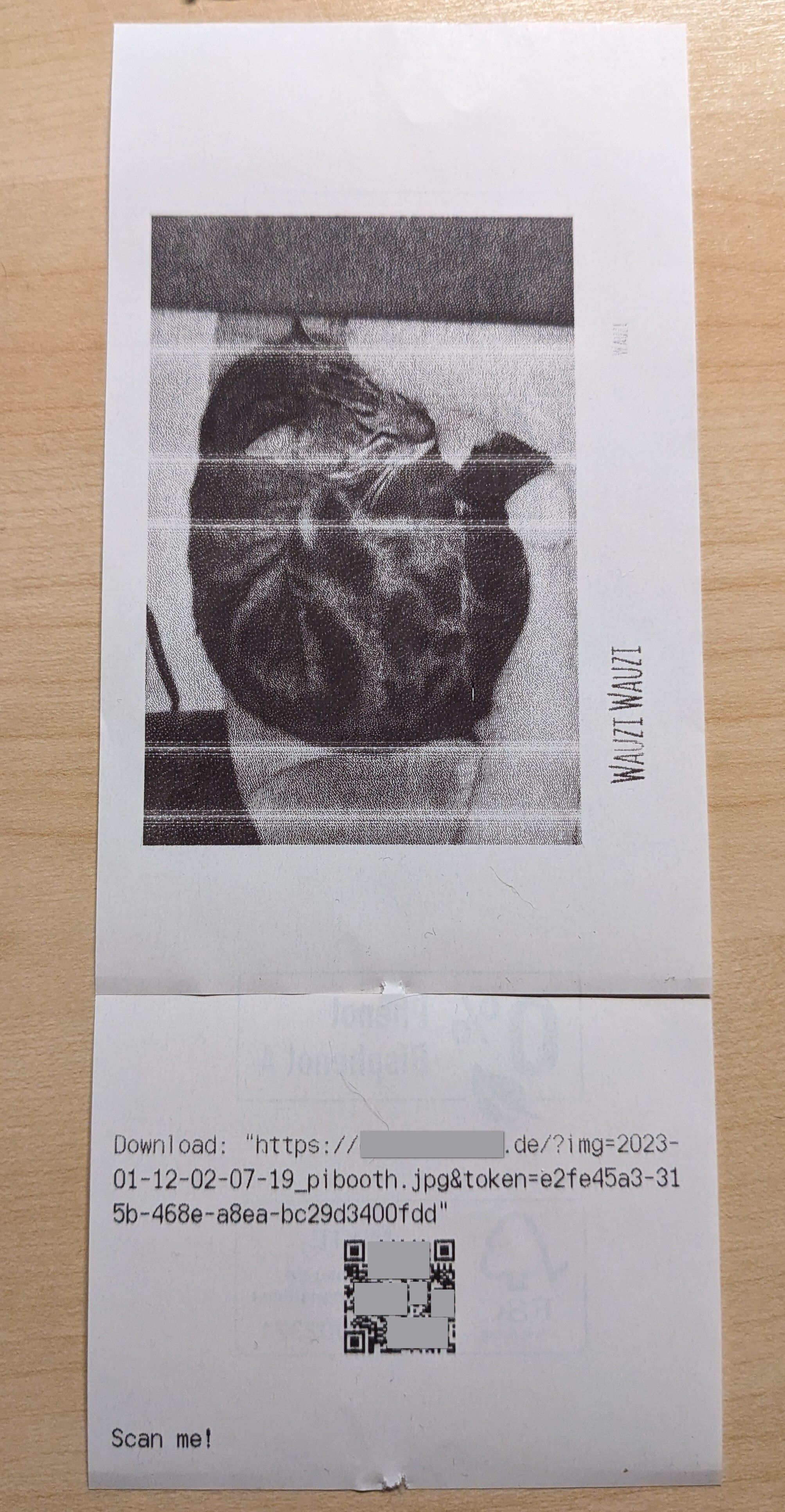
Print the final picture with a thermal printer. It can also print a QR code with the direct link to the image. Generates an access token and stores it in a csv file. The access token can be included in the URL stored in the QR code. Another downloadbackend can then look it up and only serve the image with the corresponding access token, effectively preventing crawling.
Sample:
This assumes that you have setup the printer with a configuration file according to https://python-escpos.readthedocs.io/en/latest/user/usage.html#configuration-file . You also need to use a profile with the media.width.pixels set.
Below are the new configuration options available in the pibooth configuration. The keys and their default values are automatically added to your configuration after first pibooth restart.
This is a sample config, that you need to adapt.
[ESCPOS]

# How many copies?
copies = 1

# Print a qr code with each copy as well?
print_qr = True

# Print a qr code with each copy as well?
qr_URL = https://direct-download.de?file={name}&token={token}

# Print a qr code with each copy as well?
db_file = tokens.csv
Edit the configuration by running the command pibooth --config.